If you want OpenClaw on Windows without doing the install work yourself, this is the clean path. ClawCloud provisions a managed Windows cloud server for OpenClaw, gives you RDP access, and leaves the same bot deployment flow in place. You pick the plan, connect your channel, choose managed AI credits or BYOK, and sign in when the server is ready.
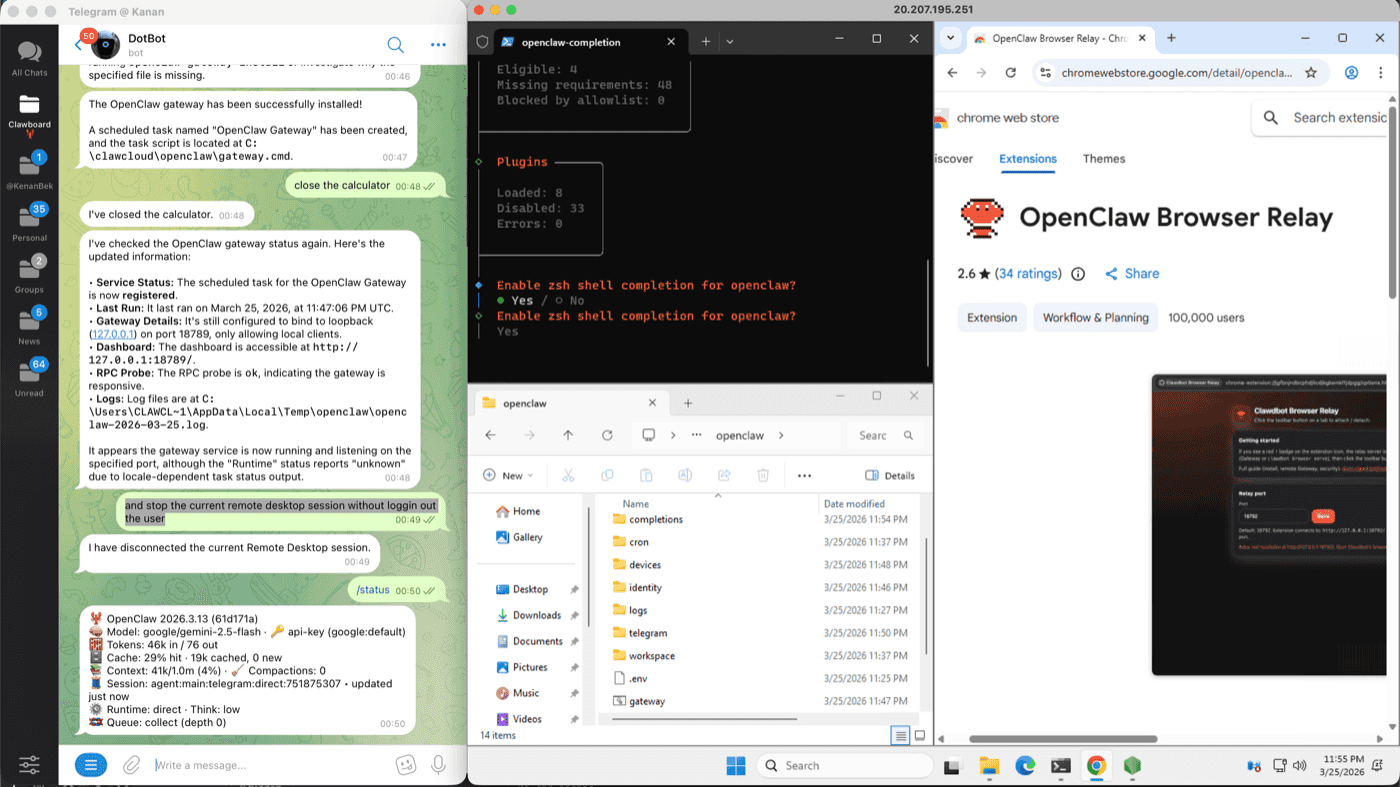
What you get
An OpenClaw Windows cloud server on ClawCloud gives you a full desktop instead of an SSH-only workflow.
- A dedicated Windows server with OpenClaw already provisioned
- RDP access from macOS, Windows, or Linux
- Chrome already installed — OpenClaw's browser tool runs with a full visible UI you can see and interact with via RDP
- Admin access, so you can install tools or adjust the machine the way you want
- The same ClawCloud dashboard, billing flow, and bot deployment wizard used on Linux
If you are new to OpenClaw itself, skim the official OpenClaw docs and the upstream Getting Started guide first. If you already know you want a managed Windows setup, stay here and deploy directly from ClawCloud with Windows preselected.
Connect via RDP
When your instance reaches ready, open the ClawCloud dashboard and copy the server IP from the instance card. The first screenshot below shows the full RDP details area. The second zooms in on the exact place to reveal or copy the username and password. Treat the dashboard values as the source of truth for your login details.
If you want to watch the full flow before following the steps, this walkthrough shows the Windows provisioning, dashboard checks, RDP login, and first look inside the server:
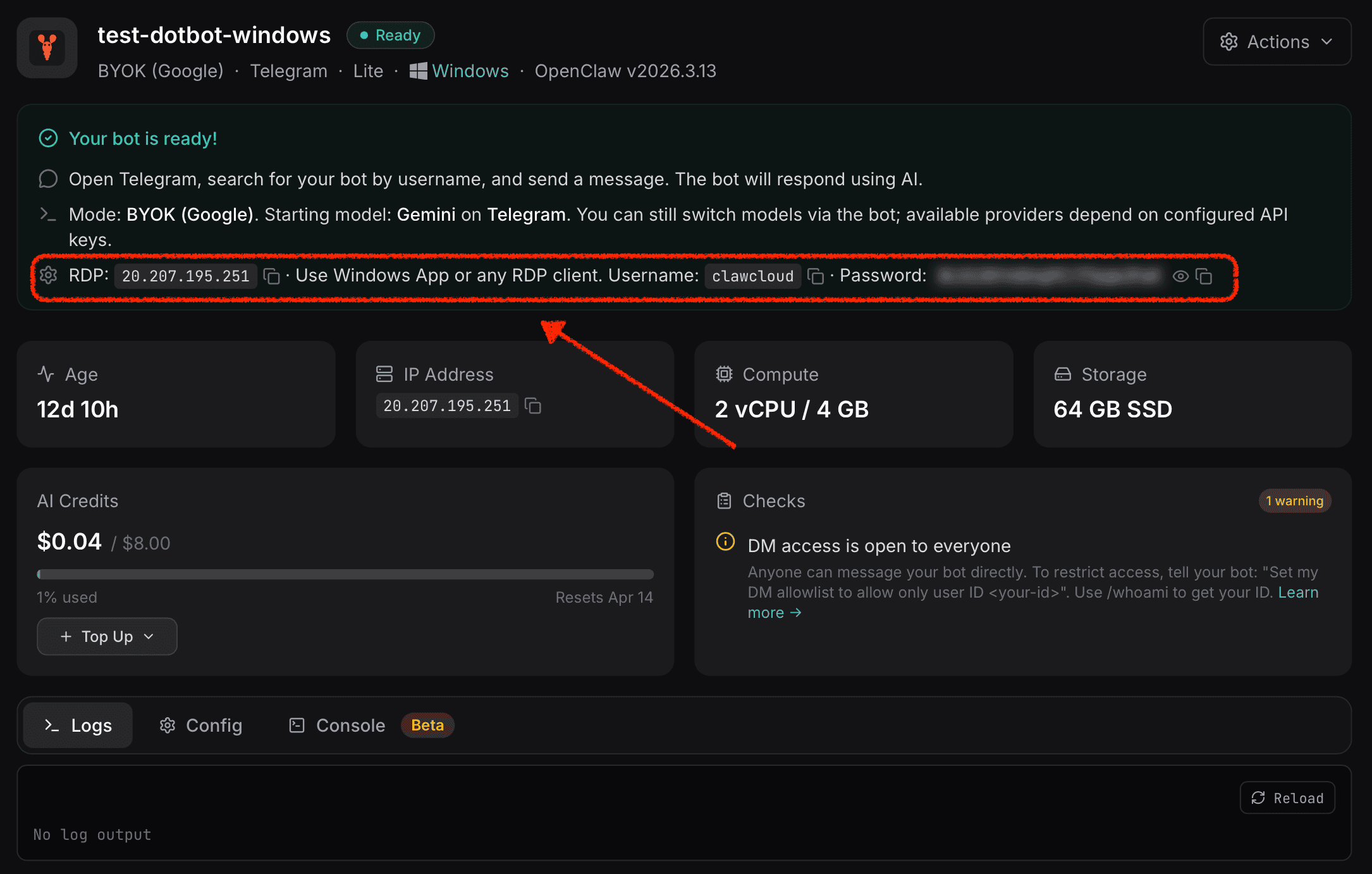
Use this first view to confirm you are on the right instance and to copy the server IP. Then use the close-up below when you need to reveal or copy the login credentials without hunting around the dashboard.

From there, the connection flow is short:
- Pick the RDP client that matches your device.
- Add the server IP as the remote PC or host.
- Sign in with the dashboard credentials.
- Wait for the Windows desktop to load.
On macOS, Microsoft's Windows App overview is the simplest starting point. On Windows, the built-in Remote Desktop Connection (mstsc.exe) works without any additional download. On Linux, use your preferred RDP client.
For step-by-step instructions for every OS, see the RDP connection guide for OpenClaw Windows servers.
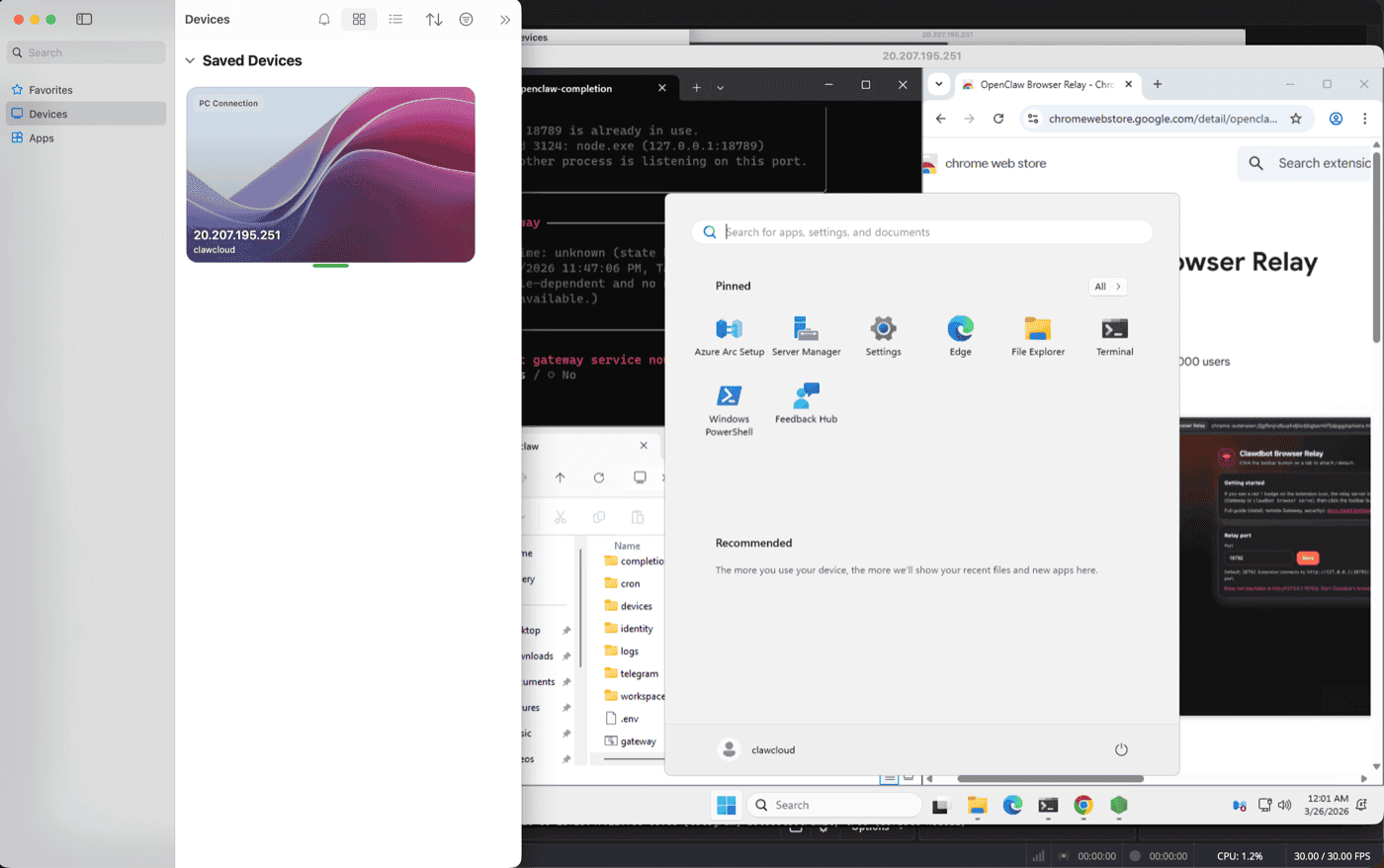
First look at the dashboard
The ClawCloud dashboard stays useful even when you choose Windows. It still shows instance health, version details, IP address, and the bot's current status. Use it as the control panel for access details and health checks, then use the Windows desktop when you want a GUI workflow.
If the dashboard shows a health notice, the guide on OpenClaw instance health checks explains what each warning means. If you are starting from zero, Getting Started with OpenClaw on ClawCloud covers the full deploy flow before the Windows login step.
Bot configuration
Most of your bot setup still happens in the deploy wizard: choose the channel, choose the model path, then finish checkout. After the server is live, the easiest day-to-day changes still happen inside OpenClaw itself.
- Use How to Switch AI Models on Your OpenClaw Bot when you want to move between models without redeploying.
- Use How to Customize Your OpenClaw Bot's Identity and Personality when you want to rename the bot or change how it responds.
The Windows desktop matters when you want a browser in front of you, a familiar GUI, or room to install extra tools on the server. It does not change the core OpenClaw flow. Your bot still runs through the same OpenClaw gateway described in the official docs.
When to choose Windows vs Linux
Pick Windows if you want a desktop session, browser-based setup, or admin access from a familiar GUI. This is usually the better fit if SSH is not how you want to spend your first hour with OpenClaw.
Pick Linux if you want the lower starting price, faster provisioning, and an SSH-first workflow. The Linux path is a better default for operators who already live in a terminal. If that sounds like you, jump to How to SSH Into Your OpenClaw Server on ClawCloud.
For a full side-by-side breakdown across both platforms, see the OpenClaw Linux vs Windows comparison.
Windows plans start at $49 per month, and yearly billing is also available in the deploy wizard. If you want the full desktop experience, start here: Deploy an OpenClaw Windows cloud server on ClawCloud.