When you need SSH access
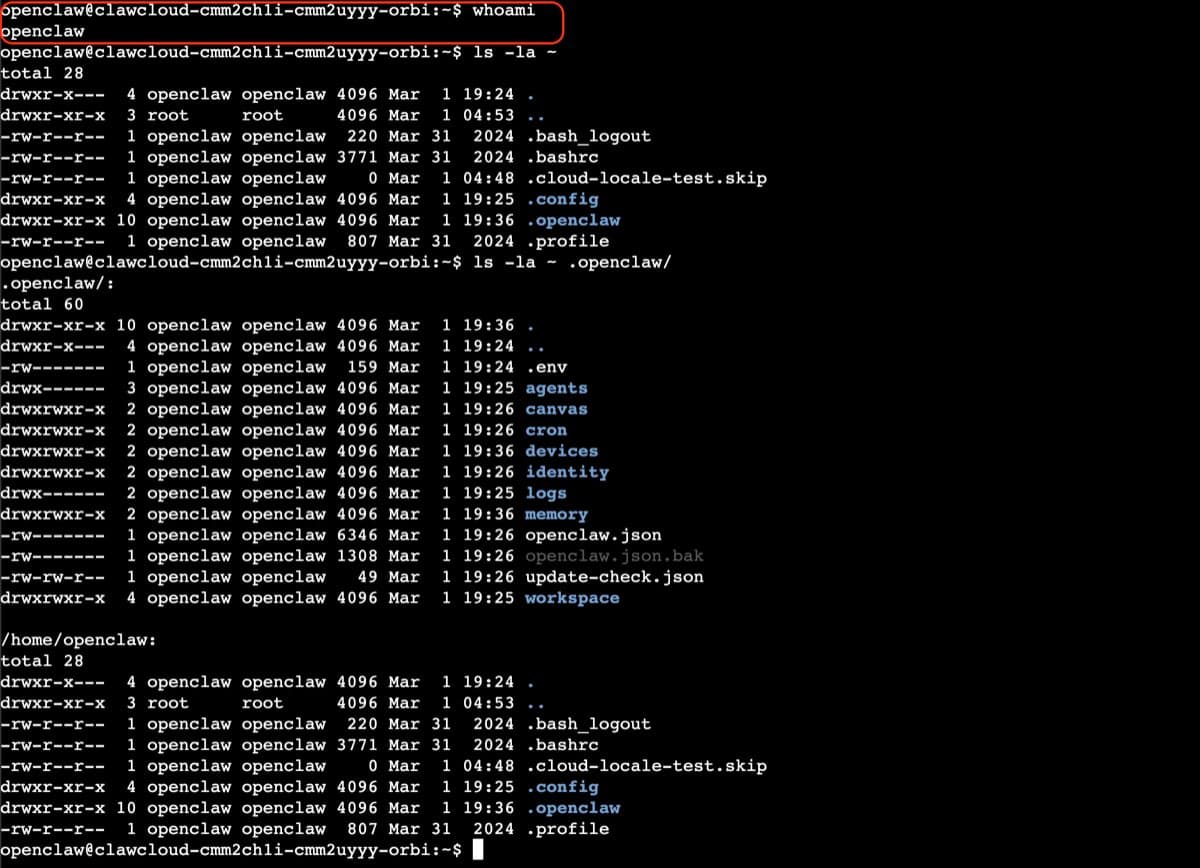
Most day-to-day tasks work through the ClawCloud dashboard — checking health, viewing logs, and reviewing config. SSH is for when you need lower-level access: installing skills, reading raw log files, debugging a config issue, or running openclaw CLI commands that the dashboard does not expose yet.
Generate an SSH key pair
If you don't have an SSH key yet, create one first. Run this in your terminal:
ssh-keygen -t ed25519 -C "your@email.com"
Accept the default file location (~/.ssh/id_ed25519) and optionally set a passphrase. To use a custom name instead, pass -f:
ssh-keygen -t ed25519 -C "your@email.com" -f ~/.ssh/clawcloud
This creates ~/.ssh/clawcloud (private) and ~/.ssh/clawcloud.pub (public). Once it finishes, print your public key:
cat ~/.ssh/id_ed25519.pub
# or, if you used a custom name:
cat ~/.ssh/clawcloud.pub
Copy the entire output — it starts with ssh-ed25519 — and use it in the steps below.
Already have a key? Check with
ls ~/.ssh/id_ed25519.puborls ~/.ssh/id_rsa.pub. If either file exists, just copy its contents directly.
Add your SSH public key
You can add your key during deployment or afterwards from the dashboard.
During deployment
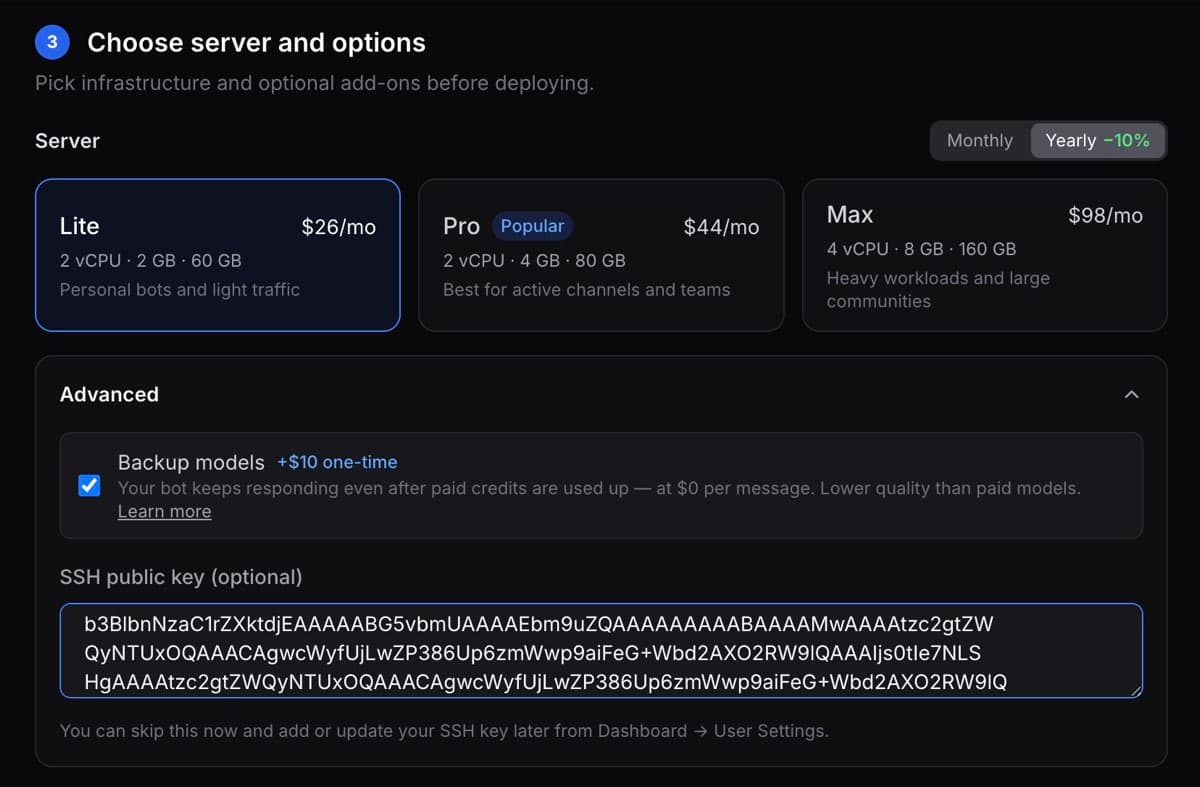
The deploy wizard has an Advanced section. Expand it and paste your SSH public key (the contents of ~/.ssh/id_ed25519.pub or ~/.ssh/id_rsa.pub).
After deployment
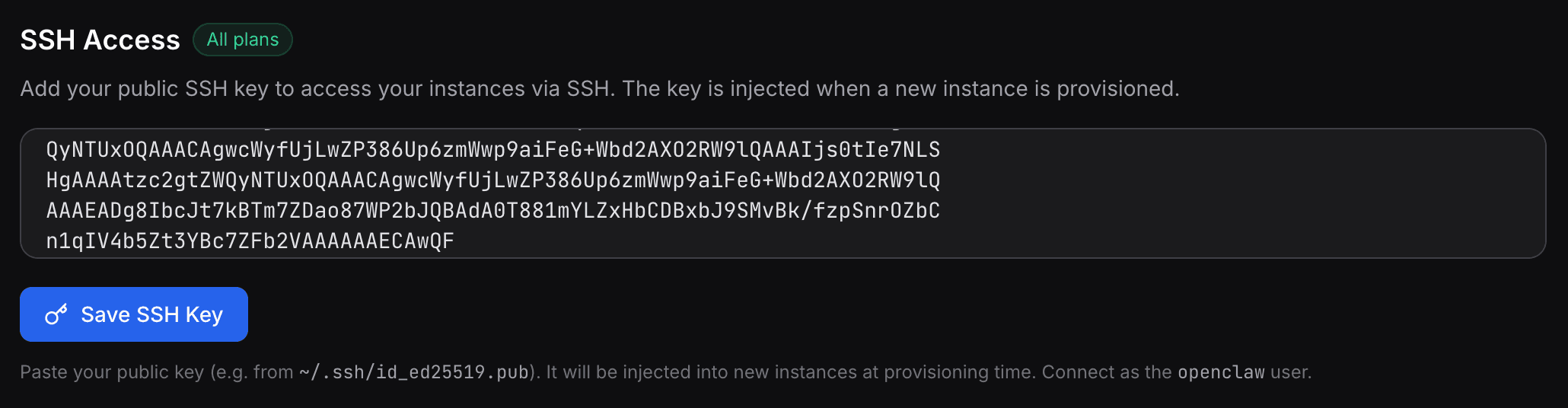
Open Dashboard → Settings → SSH Access (profile menu at the top right → Settings) and paste your public key into the SSH key field. Hit save — the key is synced immediately to any running instances and injected into new instances at provisioning time.
Connect to your server
Once your key is added, connect as the openclaw user:
ssh openclaw@YOUR_SERVER_IP
If you used a custom key name, point SSH to it with -i:
ssh -i ~/.ssh/clawcloud openclaw@YOUR_SERVER_IP
Find your server IP on the dashboard instance panel. It appears next to the instance name once the server is provisioned.
This drops you directly into the home directory where the OpenClaw config, workspace, and skills live. All openclaw and clawhub commands work from here without any extra steps.
The openclaw user has passwordless sudo, so system-level tasks work too — no need to reconnect as root:
sudo systemctl restart some-system-service
Common commands after connecting
Check your gateway status:
openclaw doctor
View recent gateway logs:
export XDG_RUNTIME_DIR=/run/user/$(id -u)
journalctl --user-unit openclaw-gateway -n 50 --no-pager
List installed skills:
openclaw skills list
Install a skill from ClawHub:
clawhub install tavily-search
Check your current model config:
openclaw config get agents.defaults.model
File locations
| Path | What it contains |
|---|---|
~/.openclaw/openclaw.json | Main OpenClaw config file |
~/.openclaw/workspace/ | Bot workspace — memory files, skill folders |
~/.openclaw/workspace/MEMORY.md | Root memory file |
Troubleshooting
Connection refused: Your SSH key may not be on the server yet. Add it via Dashboard → User → Settings → SSH Access, then wait about 30 seconds for propagation.
Permission denied (publickey): Make sure you are connecting as openclaw. This is the user your SSH key is authorized for.
No journal entries for openclaw-gateway: The gateway runs as a user-level systemd service. Make sure XDG_RUNTIME_DIR is set before running journalctl — use the command from the "Common commands" section above, which sets it automatically.