This guide walks through the full process of deploying your first OpenClaw AI assistant with ClawCloud — from creating an account to having a working bot on Telegram, Discord, or Feishu.
Do you need ClawCloud?
OpenClaw can run on any server: a cloud VPS you set up yourself, a Mac via Homebrew, or a home Linux machine. ClawCloud handles that server for you. It provisions a fresh cloud server, installs OpenClaw, and configures the AI model credentials, so your bot is online without touching a command line or SSH session.
The tradeoff is control. Self-hosting gives you full access to the machine; ClawCloud gives you managed updates, a dashboard, and built-in billing for AI credits. Neither option locks you in. OpenClaw is the same software either way.
If you'd rather run it yourself, the OpenClaw self-hosting docs cover Linux and macOS setup.
What you'll need
Before you start, have these ready:
- A channel bot token for the messaging platform you want to use:
- Telegram: How to create a Telegram bot (2 minutes)
- Discord: How to create a Discord bot (5 minutes)
- Feishu/Lark: How to create a Feishu bot (5 minutes)
If you're on macOS and want to install OpenClaw locally via Homebrew, or run it on a cloud VPS you manage yourself, the OpenClaw self-hosting docs cover the setup steps. Node 22 is required. This guide covers the ClawCloud managed deployment path only.
An AI API key is optional — add the managed AI credits addon during checkout to start without one. If you prefer to bring your own key from OpenAI, Anthropic, or Google AI Studio, you can use BYOK mode during deployment.
Step 1: Sign in to ClawCloud
Go to clawcloud.sh and click Deploy Now or Log in. Sign in with your GitHub or Google account. If you don't have an account, one is created automatically when you sign in.

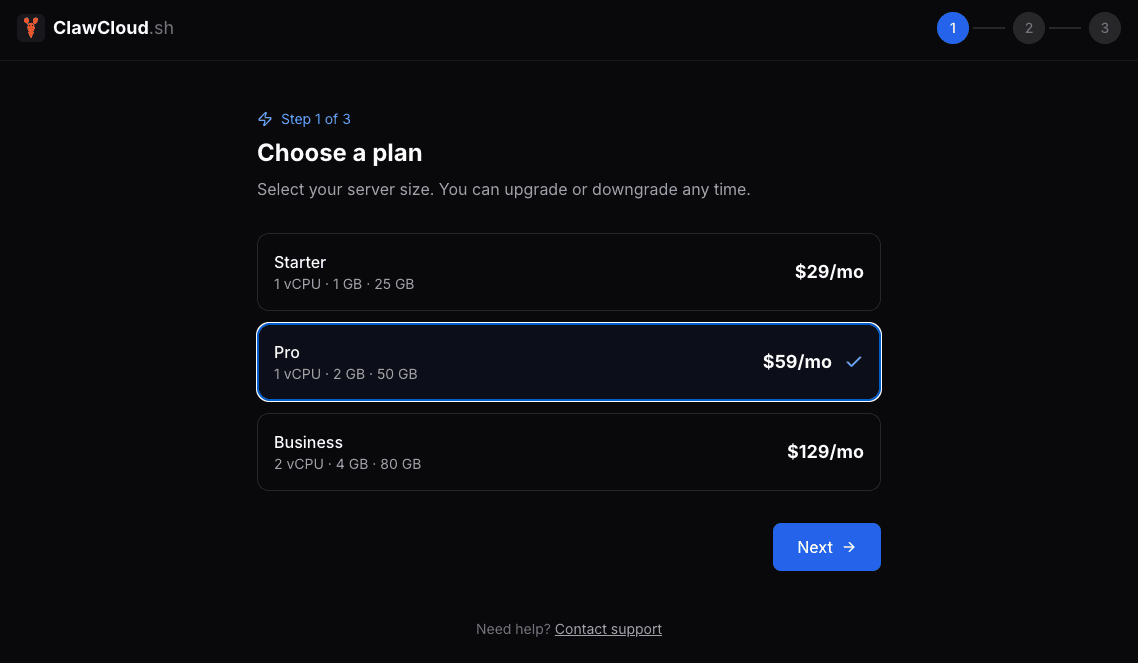
Step 2: Choose a plan
The deploy wizard starts with plan selection:
- Lite ($29/month) — 1 instance, Telegram + Discord, email support.
- Lite ($29/month) — 1 instance, Telegram + Discord + Feishu, SSH access, base support.
- Pro ($49/month) — 1 instance, all channels (including WhatsApp), daily backups, SSH access, priority support.
- Max ($109/month) — 1 instance, all channels, hourly backups addon available, premium support (8h response).
All plans include BYOK (bring your own key) by default. Optionally add managed AI credits starting at +$9/mo.
Step 3: Connect a channel
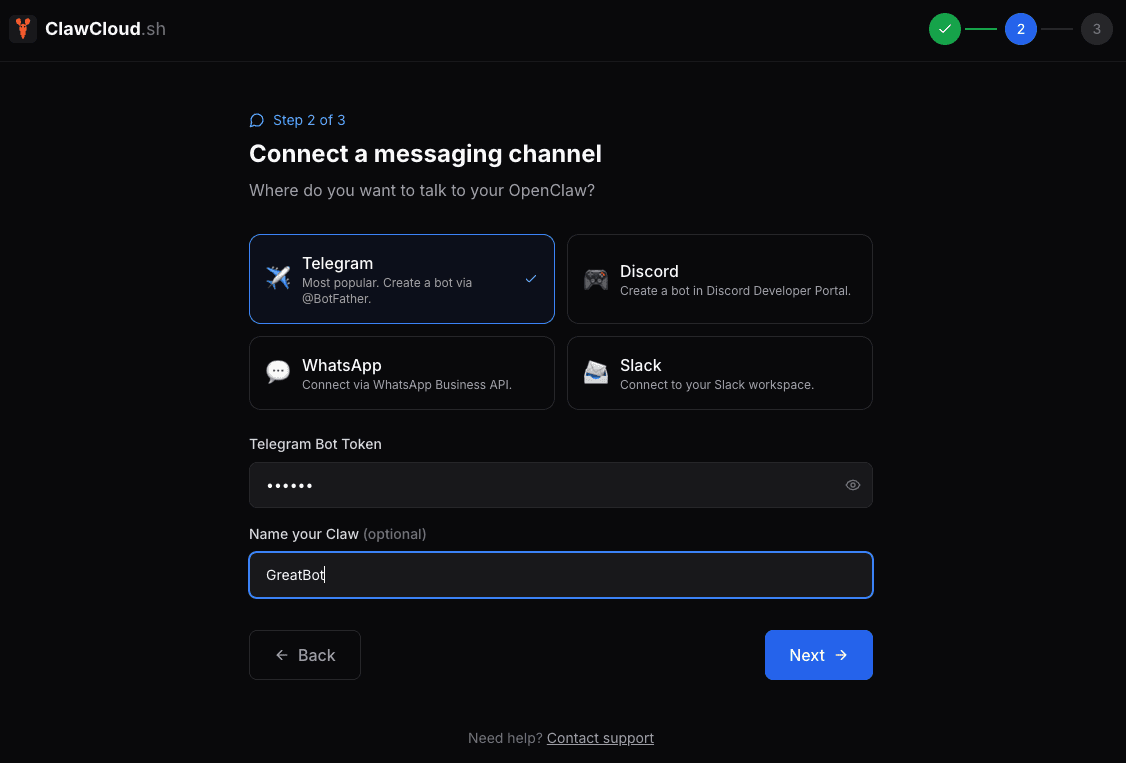
Select your messaging channel (Telegram, Discord, or Feishu on Lite; WhatsApp is available on Pro and Max) and paste your credentials.
For Telegram and Discord, this is a bot token. For Feishu, use App ID + App Secret.
Optionally, give your bot a name. This is just for your reference in the dashboard.
Step 4: Choose your AI model and deploy
Select your AI model (Claude, GPT, or Gemini). If you added the managed AI credits addon, no API key is needed. Otherwise, expand the "Bring your own key (BYOK)" option and paste your key.
Review the deployment summary, then click Pay & Deploy. You'll be taken to Stripe checkout. After payment, your server starts provisioning automatically.
Step 5: Verify your bot is live
After checkout, you'll see a success page. Go to your Dashboard to see your instance. Provisioning usually takes 30–60 seconds.
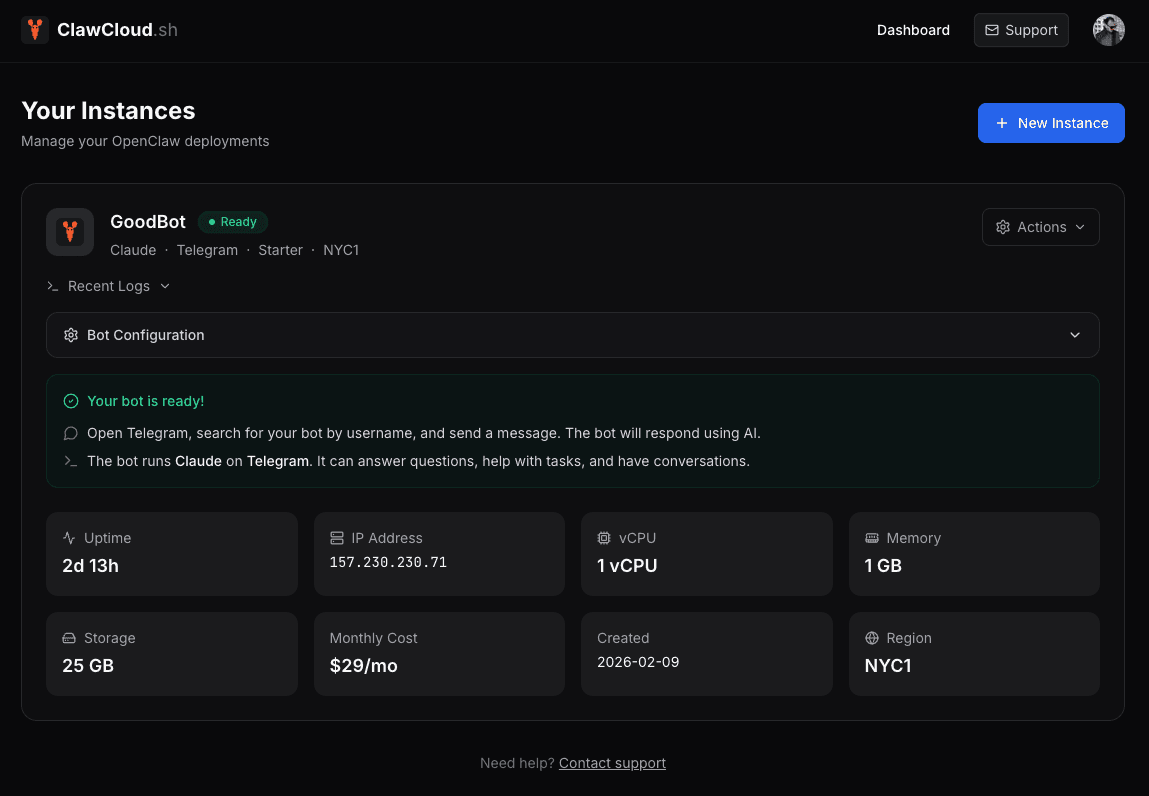
Once the status shows "active," open your messaging app and send a message to your bot. It should respond within a few seconds.
What's next
From your dashboard, you can:
- View logs — See recent activity from your OpenClaw instance.
- Configure your bot — Change the AI model, adjust the system prompt, or update the bot's identity.
- Reboot — Restart your instance if needed.
If you're on a Pro or Max plan, you can also SSH into your server from Settings after adding your public key.
Curious about what's running on your server? See what OpenClaw hosting requires for the full infrastructure breakdown.
Channel-specific deployment examples:
- Run an AI Telegram Bot with OpenClaw
- Run an AI Discord Bot with OpenClaw
- Run an AI Feishu Bot with OpenClaw
Troubleshooting
Bot deployed but not responding — Check the dashboard for instance status. If it shows "active" but the bot is silent, verify you pasted the correct credentials during deployment. For Telegram, make sure you're messaging the right bot username. For Discord, confirm the bot was invited to your server with the Message Content Intent enabled (see the Discord setup guide). For Feishu, verify App ID + App Secret and confirm the app is enabled in your tenant (see the Feishu setup guide).
Dashboard shows "deploying" for more than 2 minutes — Provisioning occasionally takes longer than expected. Wait 5 minutes before contacting help@clawcloud.sh.
"Payment failed" at checkout — Stripe may decline the card for various reasons. Try a different payment method or contact your bank.
Running into install errors? If you're self-hosting OpenClaw and hitting setup problems, see Common OpenClaw npm Install Errors for the most frequent failures on macOS and Linux. If the gateway starts but shows "pairing required," see OpenClaw Gateway Connect: Pairing Required.
Need help?
Email help@clawcloud.sh and we'll get back to you.