Once your ClawCloud Windows instance reaches ready, you connect by RDP. The ClawCloud dashboard shows the server IP, username, and password — pick the section below for your OS.
For a broader overview of what a Windows server gives you, see the OpenClaw Windows cloud server setup guide. If you haven't deployed yet, start from ClawCloud with Windows preselected.
Before you connect
Check the following first:
- Instance status is
readyin the ClawCloud dashboard - You have the server IP from the instance card
- You have the RDP username and password (use the Reveal button in the credentials section)
If the instance is still provisioning, wait until the status badge reads ready. Credentials appear once the server is live.
From Mac
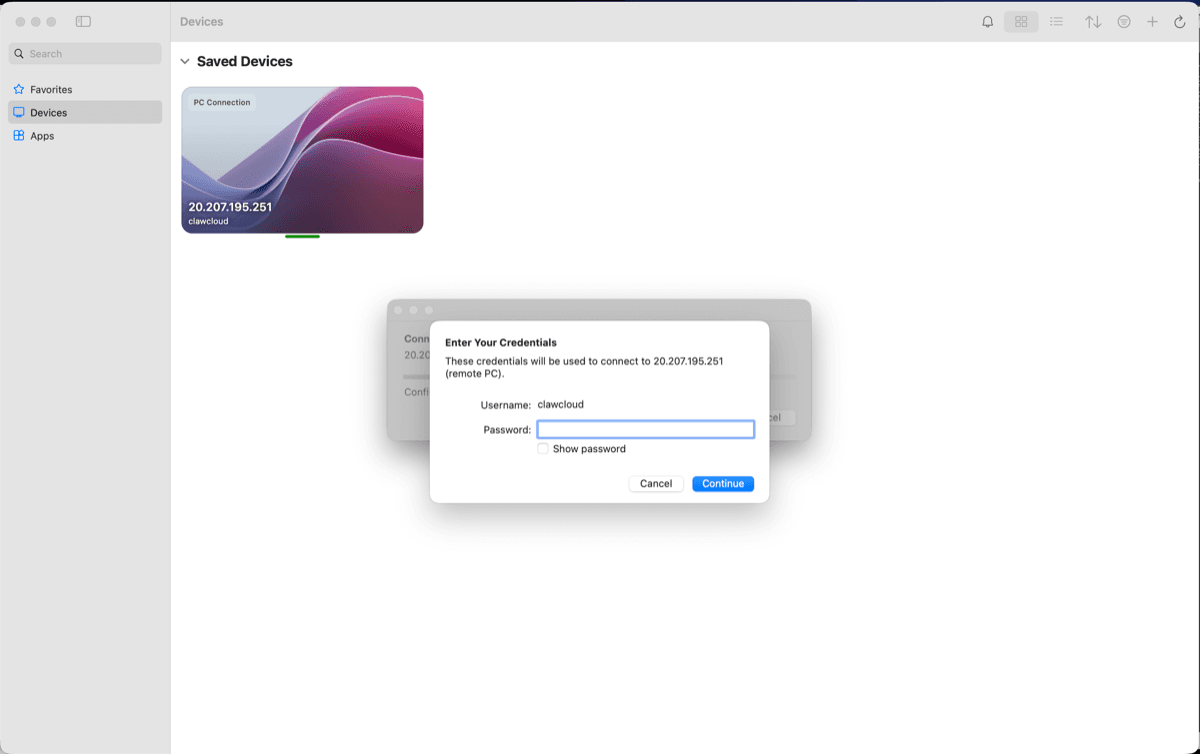
Microsoft's Windows App is the current RDP client for macOS. It replaced the older Microsoft Remote Desktop app.
- Download Windows App from the Mac App Store
- Open Windows App and click + to add a new PC
- Enter your server IP in the PC name field
- Choose Add a user account and enter the username and password from the dashboard
- Click Connect
The first connection shows a certificate warning. Accept it to load the Windows Server desktop.
From Windows
Built-in Remote Desktop Connection
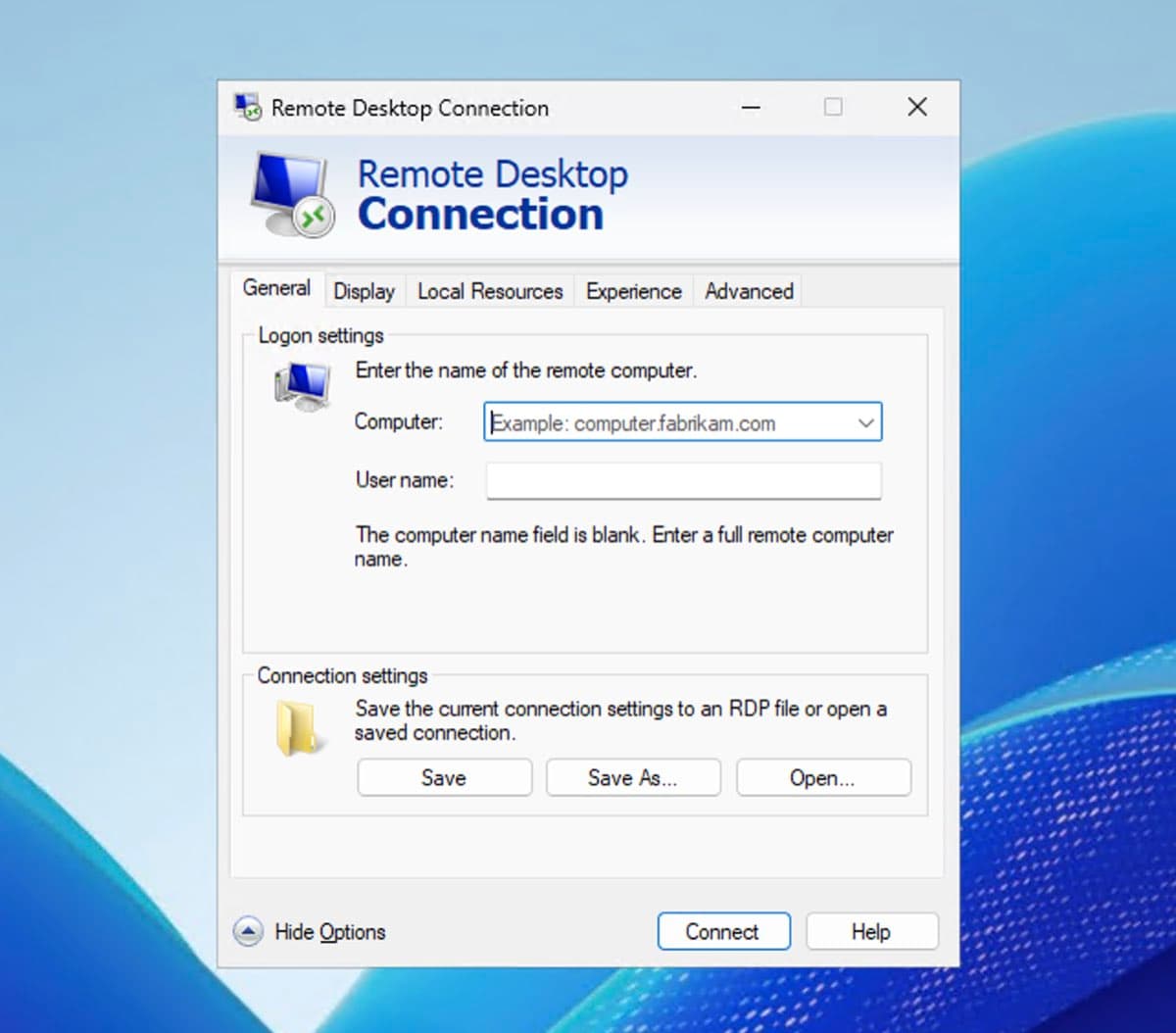
Remote Desktop Connection (mstsc.exe) ships with every Windows install — no download needed:
- Press Win + R, type
mstsc, and press Enter - Enter your server IP in the Computer field and click Connect
- Enter the username and password from the dashboard
- Accept the certificate warning
Windows App (Microsoft Store)
If you prefer a more polished client, Windows App is available from the Microsoft Store:
- Install Windows App from the Microsoft Store
- Click +, add the server IP as a new PC
- Enter your username and password when prompted
- Click Connect
Both reach the same desktop. mstsc works without any download; Windows App has a cleaner interface.
From Linux
Remmina covers most Linux desktops. Install it with the RDP plugin for your distro:
- Ubuntu/Debian:
sudo apt install remmina remmina-plugin-rdp - Fedora:
sudo dnf install remmina remmina-plugins-rdp - Arch:
sudo pacman -S remmina freerdp
Once installed, open Remmina, click New Connection, set Protocol to RDP, enter the server IP, username, and password, then connect.
If you prefer the command line or run a headless Linux setup, xfreerdp works too:
xfreerdp /u:<username> /p:<password> /v:<server-ip>
Replace <username>, <password>, and <server-ip> with the values from your dashboard.
Troubleshooting
Connection refused or timeout
The server is probably still starting up or the gateway is restarting after provisioning. Wait two minutes and try again. If the dashboard shows ready and the connection still fails, check the instance health from Dashboard.
Certificate warning
Expected on the first connection. Windows Server uses a self-signed RDP certificate by default. Approve it to continue.
Credentials not accepted
Copy the password with the Copy button rather than typing it. Some generated passwords contain characters that are easy to mistype.
Black screen after login
The session is still loading. Wait a few seconds. If the screen stays black, disconnect and reconnect — the second attempt loads cleanly.
Slow performance
Lower the color depth or resolution in your RDP client. In Windows App, open connection settings and reduce the display resolution. In Remote Desktop Connection, click Show Options before connecting, go to the Display tab, and drag the resolution slider down.
For anything the dashboard flags as a health issue, the dashboard warnings guide explains each status badge.
What's next
Once you're on the Windows Server desktop, your OpenClaw gateway is already running and connected to the channel you picked during deploy. Chrome is installed on the server if you want to open a browser there directly.
To compare the Windows and Linux options across access method, features, and pricing, see the OpenClaw Linux vs Windows comparison.