You need a Telegram bot token to deploy an OpenClaw assistant on Telegram. This OpenClaw setup guide walks you through the full flow in about 2 minutes.
If you're looking for a full Telegram bot hosting overview first, start here: OpenClaw Telegram Bot Hosting.
OpenClaw Telegram Bot Setup (Support Terms)
If you searched for openclaw telegram bot token, openclaw telegram bot setup, or openclaw add telegram channel, this page is the canonical setup flow for ClawCloud deployments.
Already have your Telegram bot token? Jump to Step 6: Deploy on ClawCloud.
What you need before starting
- A Telegram account
- Access to @BotFather
- About 2 minutes to complete setup
Step 1: Open BotFather
Open Telegram and search for @BotFather, or go directly to t.me/BotFather. BotFather is Telegram's official tool for creating and managing bots.
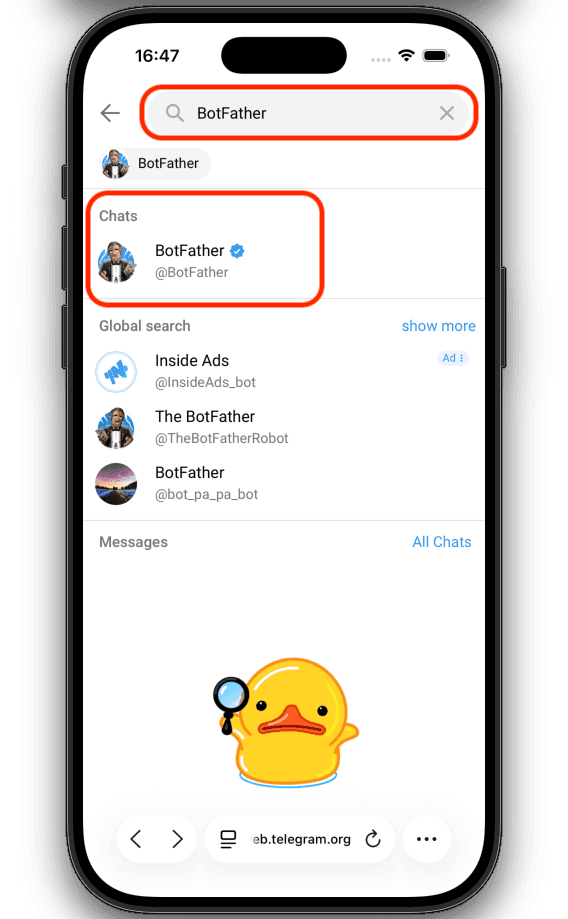
Step 2: Verify BotFather's identity
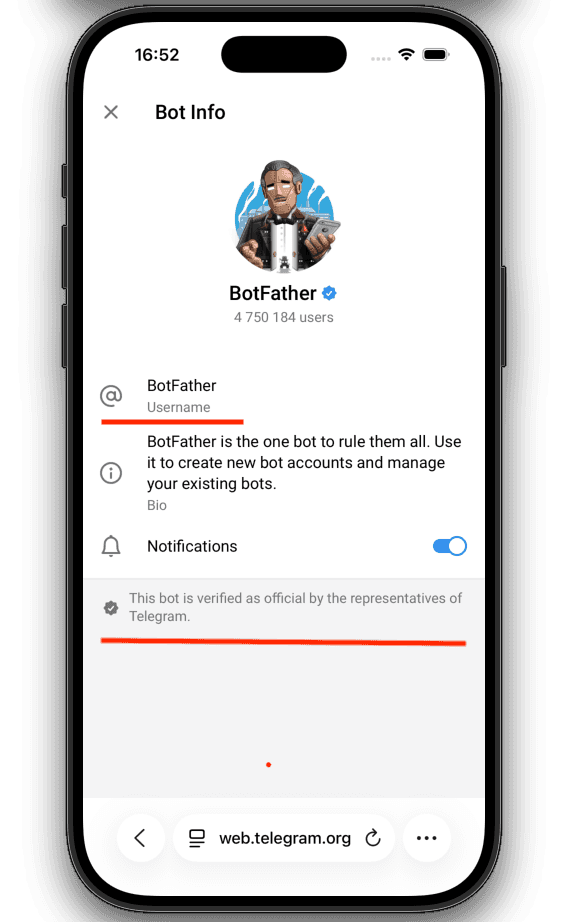
Before interacting with BotFather, verify it's the official Telegram bot. Open BotFather's profile and check for:
- Verified badge — Look for the blue checkmark (✓) next to the name. This means Telegram has verified it's the official bot.
- Username — Confirm it's
@BotFatherexactly. Scam bots often use similar names like@BotFather2or@botfather_official.
Open BotFather's profile to see the verified badge:
Once you've verified it's official, proceed to create your bot.
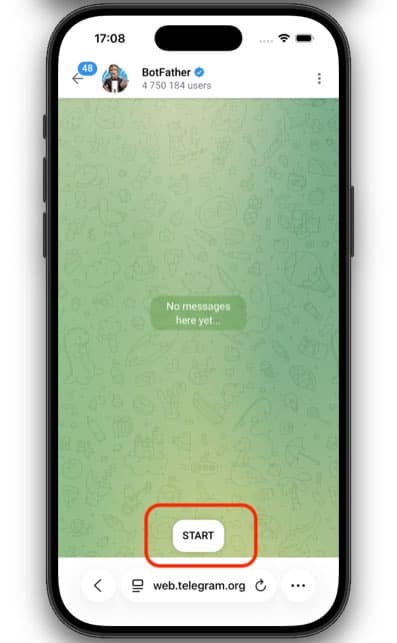
Step 3: Start the conversation
Tap or click the START button to begin interacting with BotFather.
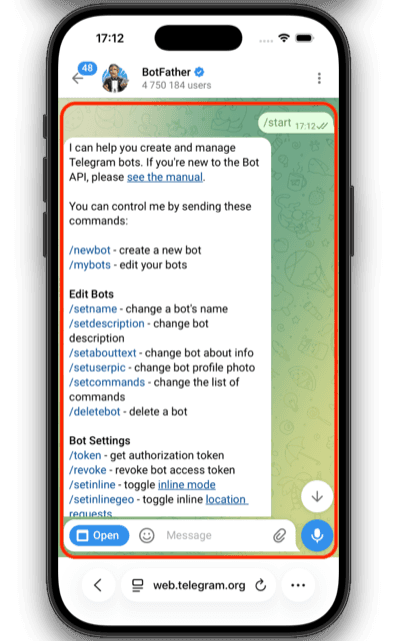
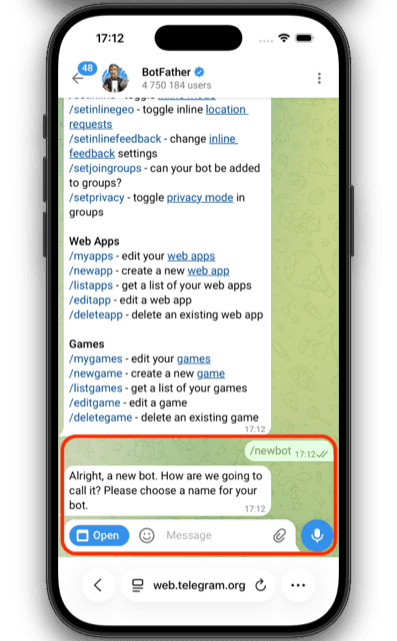
Step 4: Send the /newbot command
After tapping START, BotFather shows you all available commands. Send the /newbot command to create a new bot.
BotFather will ask you two things:
- A name for your bot — This is the display name. It can be anything, like "My AI Assistant" or "Team Helper Bot".
- A username for your bot — This must end in
bot. For example:my_ai_assistant_botorteam_helper_bot.
Step 5: Copy the token
After you provide a username, BotFather gives you a bot token. It looks something like this:
7123456789:AAHdqTcvCH1vGWJxfSeofSAs0K5PALDsaw
Copy this token. You'll paste it into the ClawCloud deploy wizard.
Step 6: Deploy on ClawCloud
Go to the ClawCloud deploy wizard, Telegram will be preselected, then paste the token. That's it — your bot will be live in under a minute.
Step 7: Optional — Customize your bot
You can customize your bot's profile in BotFather before or after deploying:
/setdescription— Set the text users see when they open a chat with your bot for the first time./setabouttext— Set the text shown in the bot's profile./setuserpic— Upload a profile photo for your bot.
These are optional. Your bot works without any of them.
Step 8: Verify and tune your bot
- Send a DM to your bot and confirm it replies.
- Add the bot to a group and confirm it responds.
- Tune behavior after first deploy with these guides.
- How to Configure OpenClaw Group Chat Behavior
- How to Change the OpenClaw DM Policy
- How to Switch AI Models on Your OpenClaw Bot
- How to Unlock DM Access on Your OpenClaw Bot
Troubleshooting
Invalid bot token error in ClawCloud
Make sure you copied the entire token, including the colon and everything after it. Do not include extra spaces.
Cannot find BotFather
Search for @BotFather (with the @ symbol) in Telegram's search bar. The official BotFather has a blue verified checkmark.
Bot responds in DMs but not in groups
Check group behavior settings after deploy. Group responses can depend on mention and group policy rules. See How to Configure OpenClaw Group Chat Behavior.
DM access errors or pairing prompts
If you are on a self-managed setup, the default DM policy is pairing. Check How to Change the OpenClaw DM Policy and How to Unlock DM Access on Your OpenClaw Bot.
What to read next
- Deploy an OpenClaw Telegram Bot (use case)
- Run an AI Telegram Bot with OpenClaw (blog)
- OpenClaw CLI Commands: The Complete Reference
- Getting Started with OpenClaw on ClawCloud
- OpenClaw Telegram Bot Hosting
For more details on Telegram channel configuration, see the OpenClaw Telegram documentation.