You need a Discord bot token to deploy an OpenClaw assistant on Discord. This OpenClaw setup guide walks through the full process: creating an application, adding a bot, getting the token, and inviting it to your server.
If you want the full Discord bot hosting overview before setup, see OpenClaw Discord Bot Hosting.
For practical deployment patterns and post-deploy behavior tips, see Run an AI Discord Bot with OpenClaw.
OpenClaw Discord Bot Setup (Support Terms)
If you searched for openclaw discord bot token, openclaw discord bot setup, or openclaw add discord channel, this page is the canonical setup flow for ClawCloud deployments.
Already have your Discord bot token? Jump to Step 5: Deploy on ClawCloud.
What you need before starting
- A Discord account
- Access to the Discord Developer Portal
- A Discord server you own, or one where your Discord account can add apps
- If you do not have a server yet, create a test server first: How do I create a server?
Step 1: Create a Discord application
Go to the Discord Developer Portal and sign in with your Discord account.
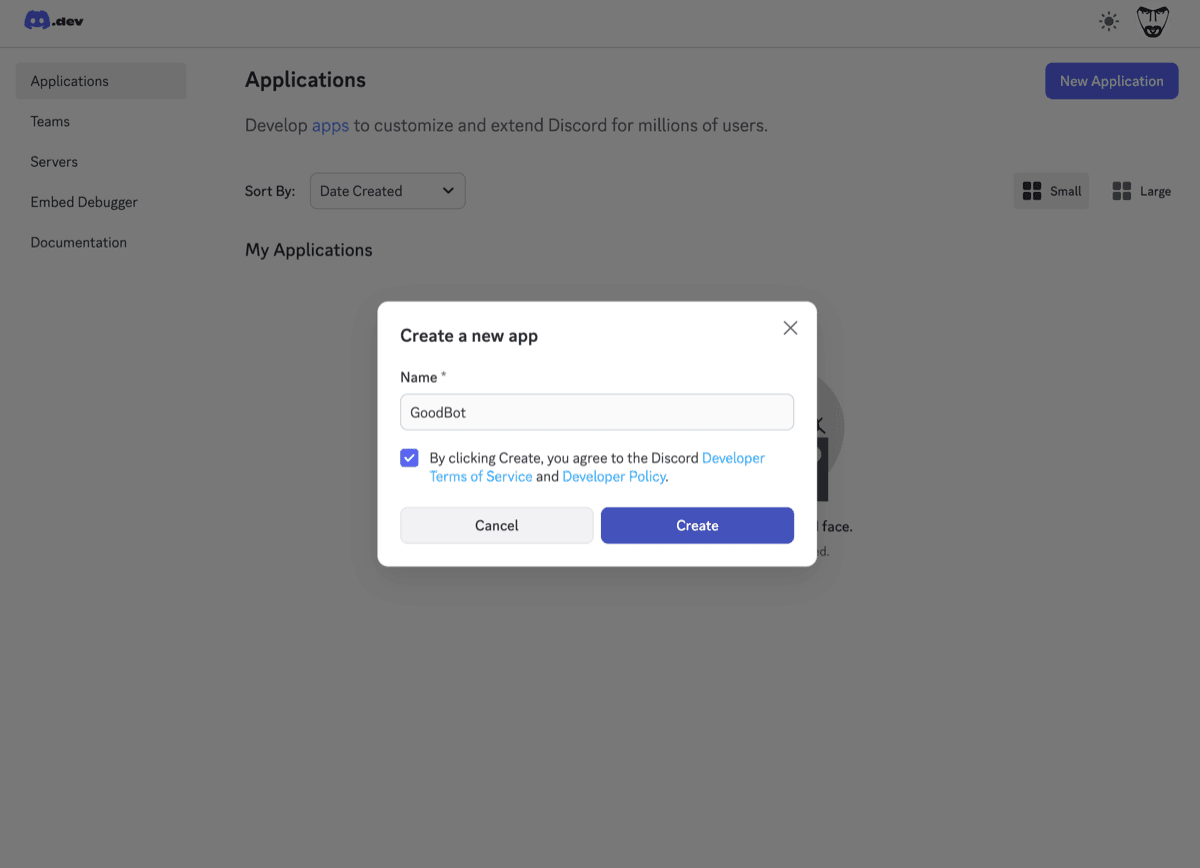
Click "New Application" in the top right. Give it a name (this is internal — your bot's display name is set separately). Click Create.
Step 2: Add a bot
In your new application, click "Bot" in the left sidebar.
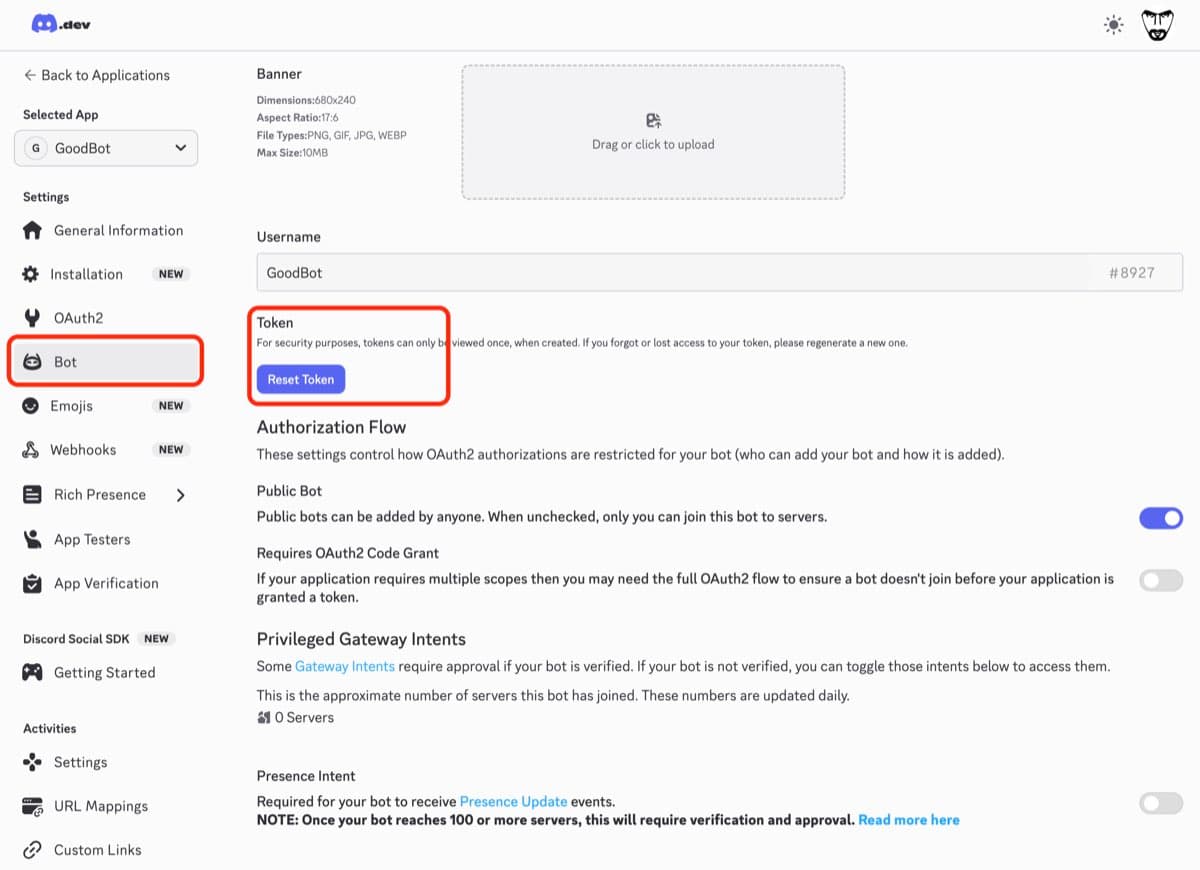
Click "Reset Token" to generate a bot token. Discord will show the token once — copy it now.
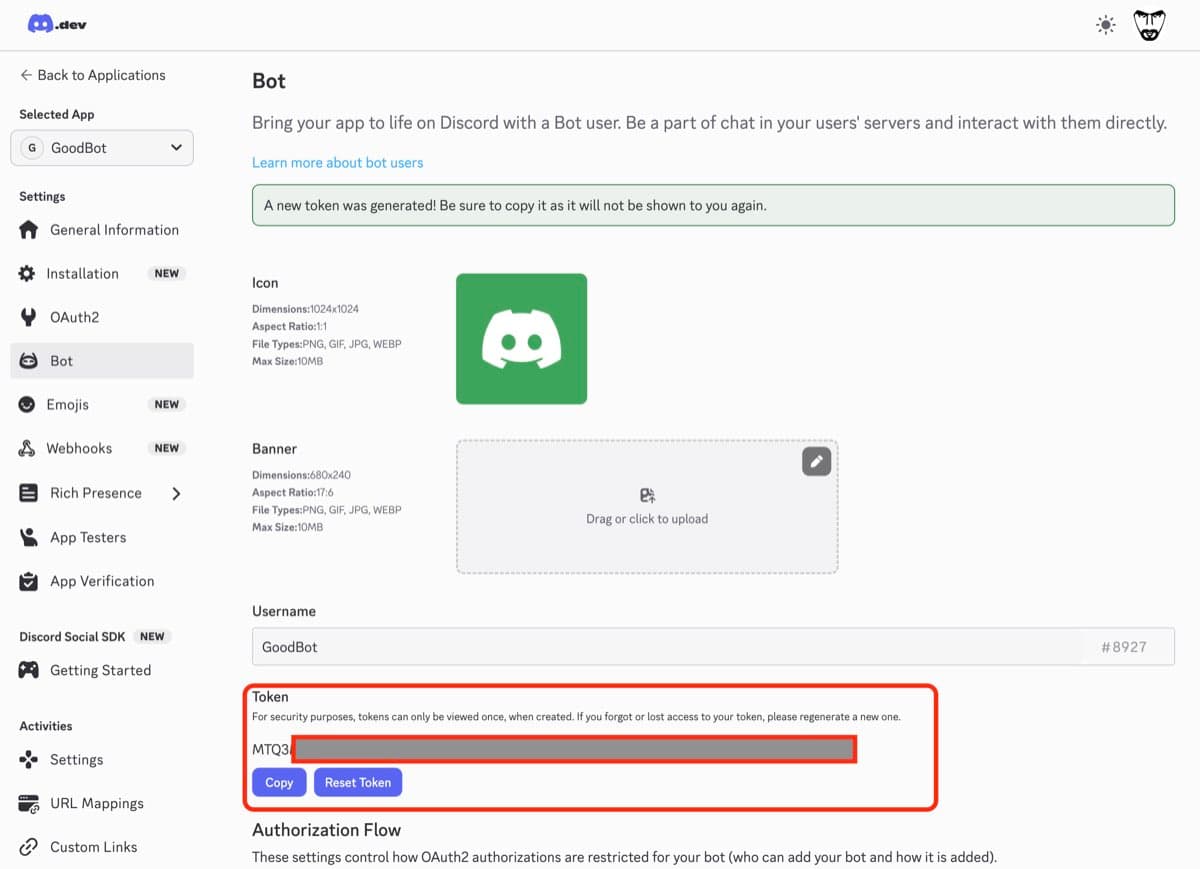
MTE5MDg3NjQ0NjY4NTk2NTQwMA.GBjPJt.example_token_here
Copy the value from the Bot page only. Do not paste the application ID, client secret, or public key into ClawCloud. If you use the wrong Discord credential, deploy will fail or the dashboard will later show a Discord token warning.
Save this token somewhere safe. You'll paste it into the ClawCloud deploy wizard.
Step 3: Configure bot permissions
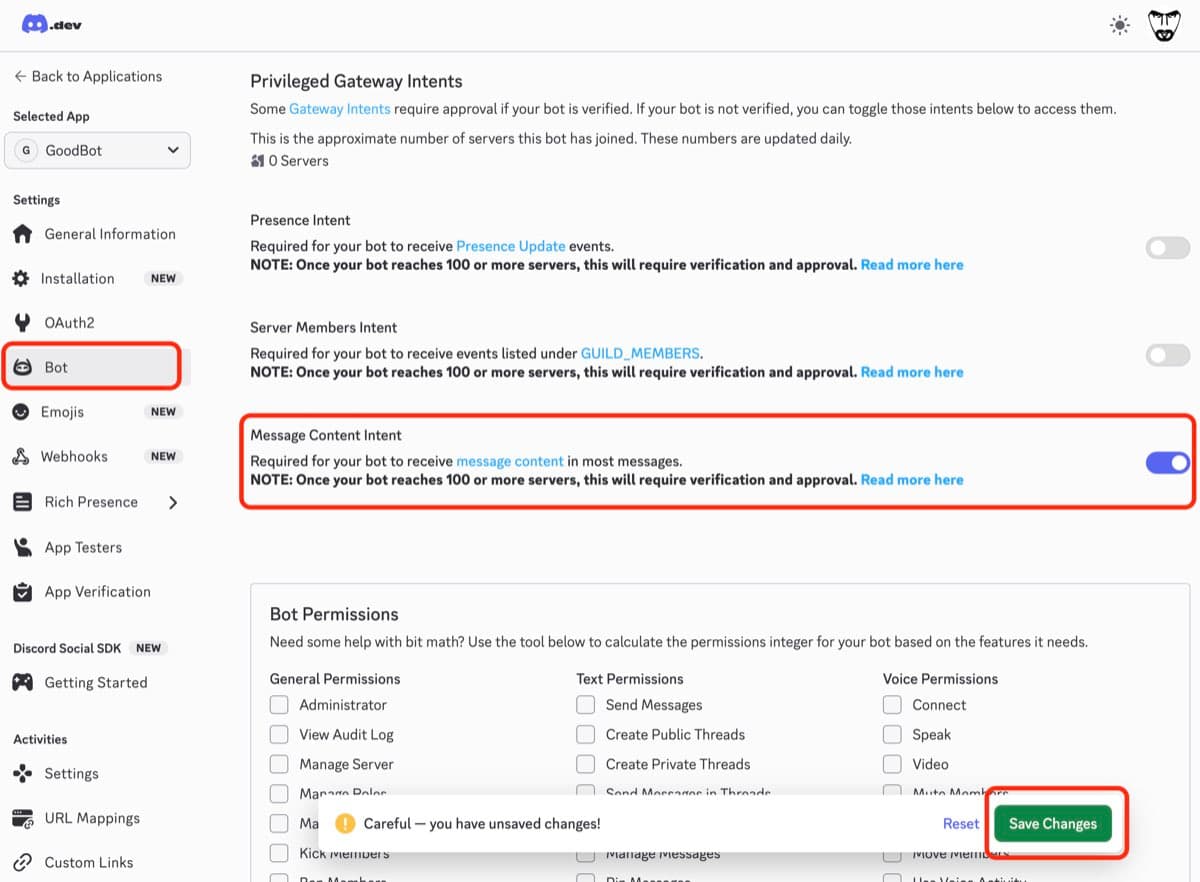
While you're on the Bot page, scroll down to "Privileged Gateway Intents" and enable:
- Message Content Intent — Required so the bot can read and respond to messages.
- Server Members Intent — Recommended for role-based allowlists and user matching.
- Presence Intent — Optional.
Click Save Changes.
Step 4: Invite the bot to your server
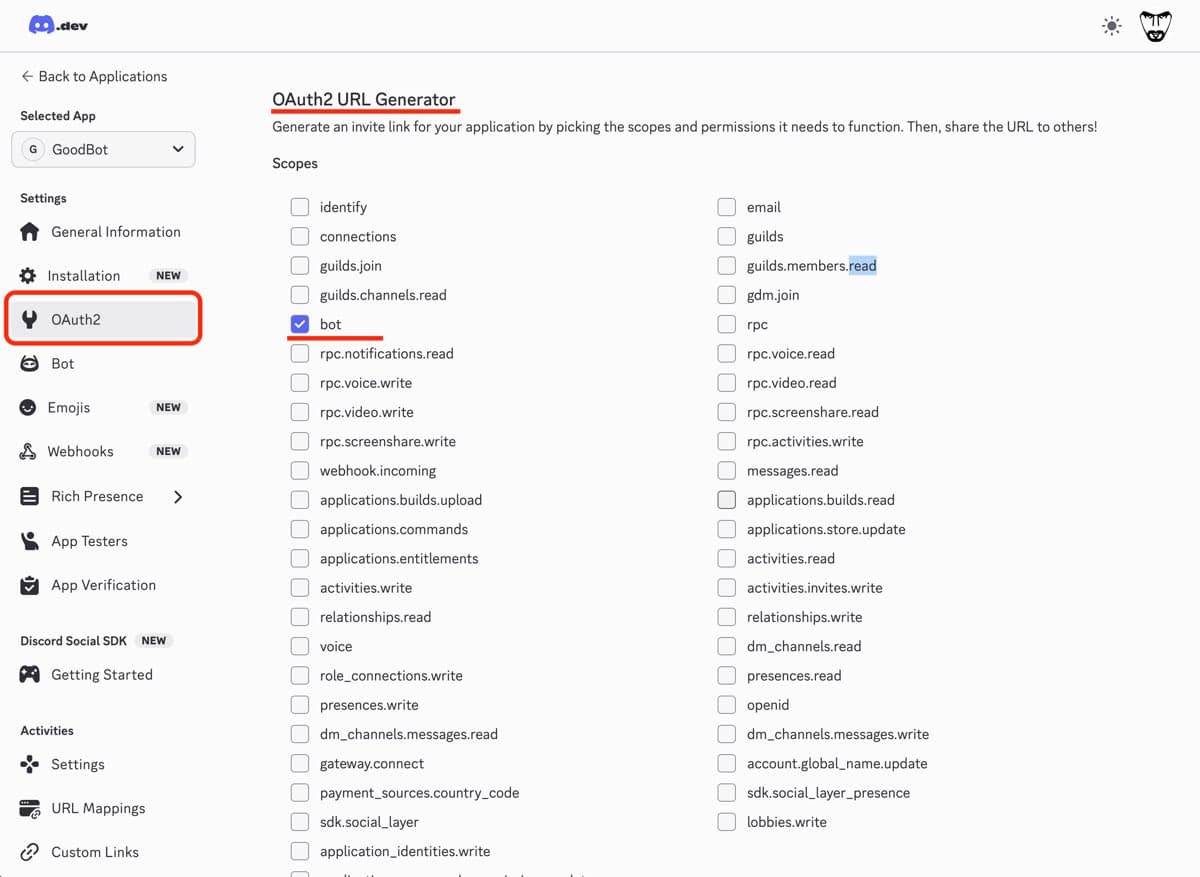
Discord's current docs use Installation in the left sidebar. Older Discord portal screenshots and some older OpenClaw docs still show OAuth2 -> URL Generator. The screenshots below use the older wording, but the required Guild Install settings are the same.
Before you open the install link, make sure you are signed into the Discord account that owns the target server or has permission to add apps there. If Discord shows an empty Add to server list, that account does not currently have a server available for app installs.
Open Installation in the left sidebar.
Under Default Install Settings for Guild Install, select:
botapplications.commands
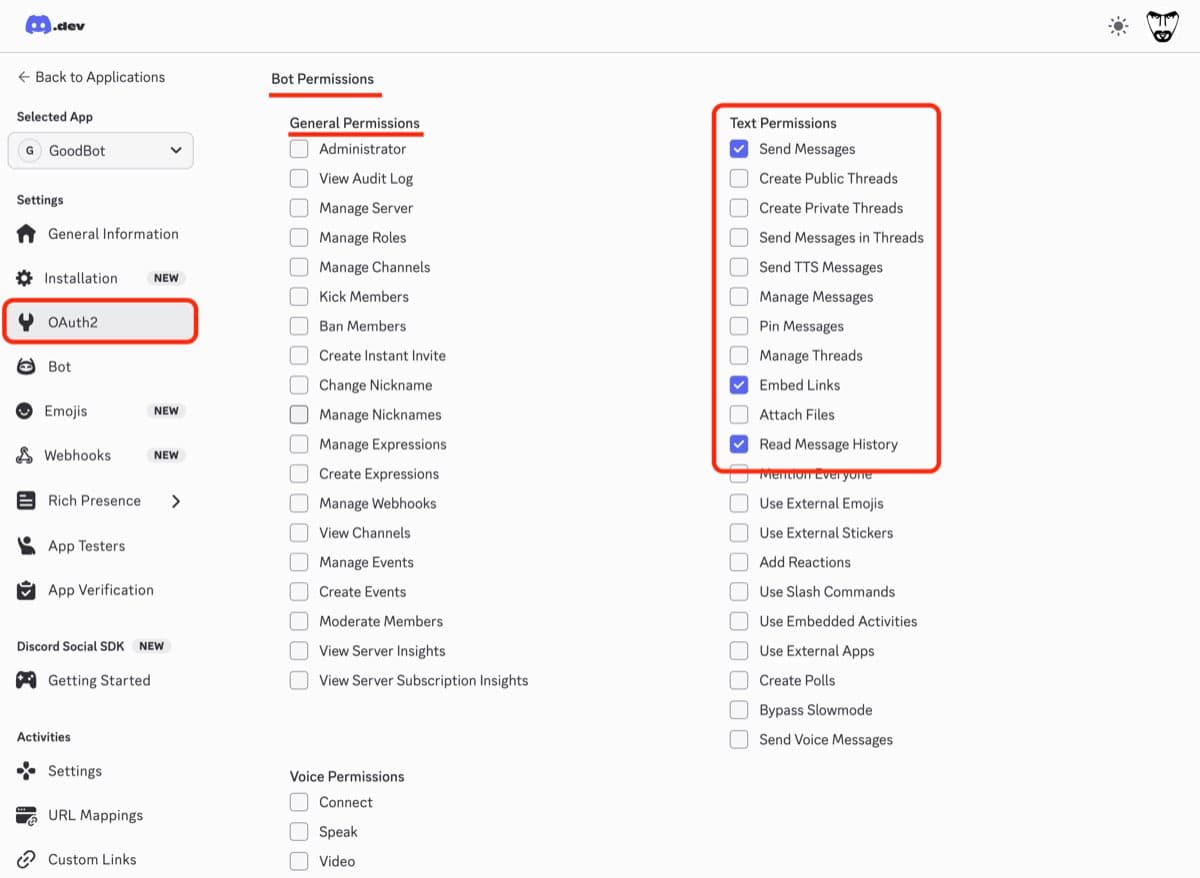
Then choose these bot permissions:
- View Channels
- Send Messages
- Read Message History
- Embed Links
- Attach Files
- Add Reactions (optional)
Bot scope:
Message permissions:
Generate the install link:
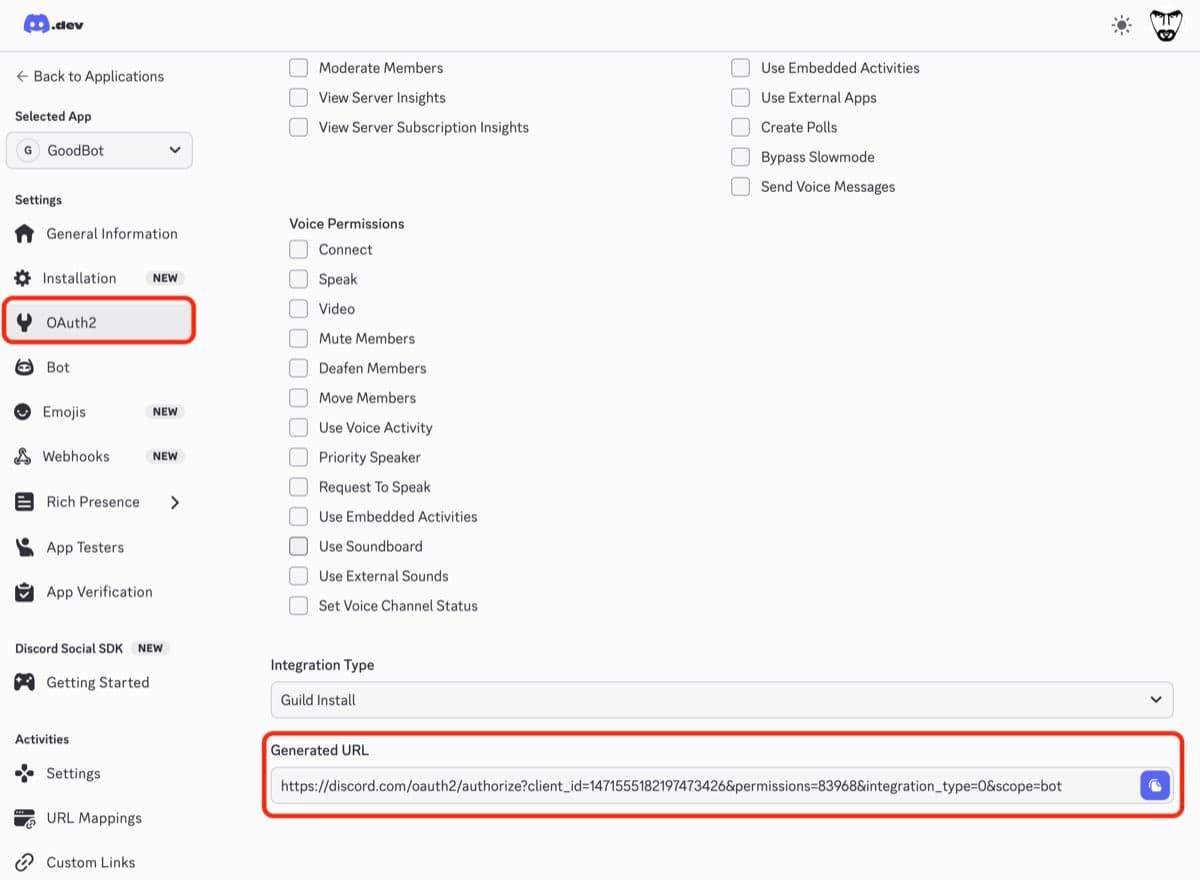
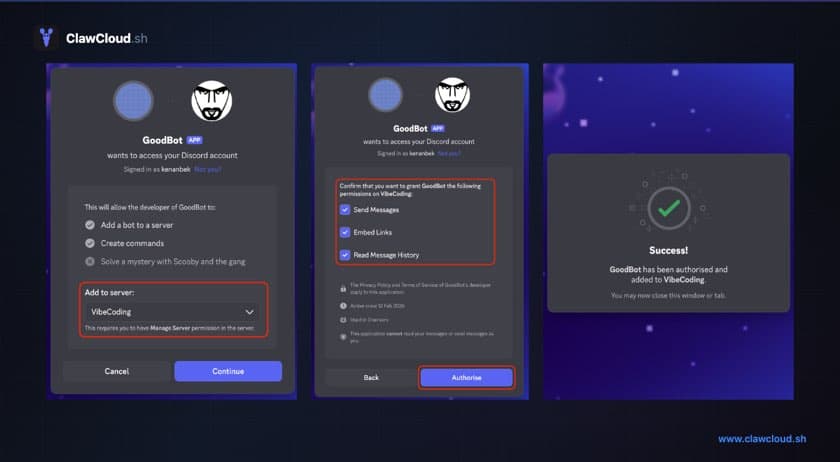
Copy the generated install link at the bottom and open it in your browser. Discord will ask you to authorize the bot.
If the Add to server dropdown says "No items to show", stop there and fix the account/server side first:
- Switch to the Discord account that owns the server you want to use.
- Or use a server where your account has permission to add apps.
- Or create a new test server, then open the install link again.
Complete the authorization flow: select your server, click Continue, review permissions, click Authorise, and confirm the success message.
Step 5: Deploy on ClawCloud
Go to the ClawCloud deploy wizard. Discord will already be selected. Paste the bot token from the Bot page and finish the deploy wizard.
Step 6: Verify and tune your bot
- Send a DM to your bot and confirm it replies.
- Send a message in your server and confirm the bot can respond.
- Tune behavior after first deploy with these guides.
- How to Configure OpenClaw Group Chat Behavior
- How to Change the OpenClaw DM Policy
- How to Switch AI Models on Your OpenClaw Bot
- How to Unlock DM Access on Your OpenClaw Bot
Troubleshooting
Bot is online but not responding
Make sure you enabled Message Content Intent in Step 3. Without it, the bot cannot read regular message content.
Also confirm the bot was invited to the correct server in Step 4.
Bot token invalid error
Tokens can only be viewed once when generated. If you lost it, return to the Bot page and click Reset Token to generate a new one.
If ClawCloud rejects the value before deploy, or your instance later shows a Discord token warning, double-check that you copied the token from the Bot page. The application ID, client secret, and public key are different values and will not work as the bot token.
When the runtime warning is active, the dashboard shows it in the Checks panel:
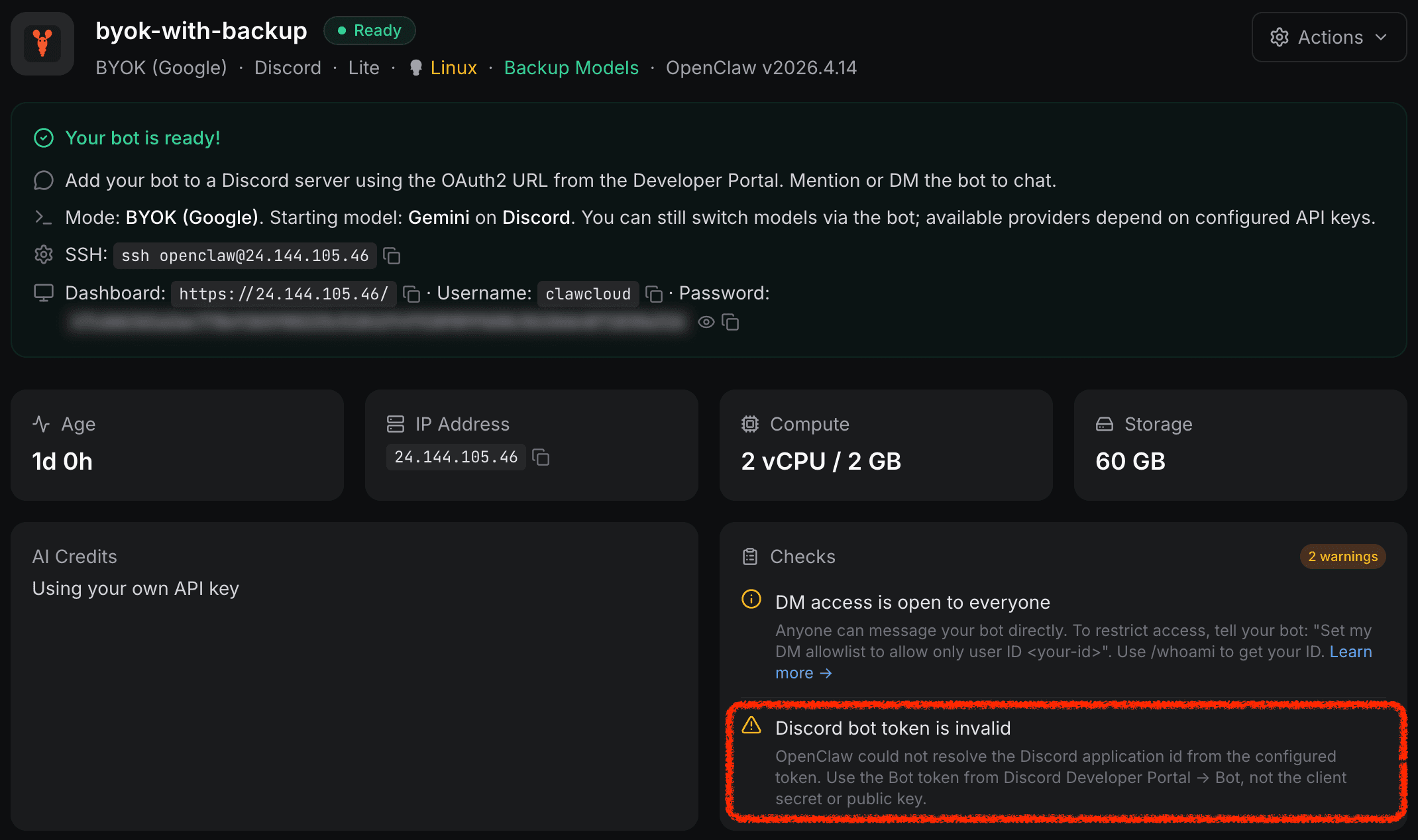
If you pasted the wrong field, go back to the Bot page, click Reset Token, copy the new token, and update the instance. For the runtime warning path, see Understanding OpenClaw Instance Health Checks and Fix: OpenClaw Discord token failures now surface earlier on ClawCloud.
Slash commands missing
Make sure you included both applications.commands and bot in the Guild Install settings during Step 4. If needed, update the install link and re-authorize the bot.
Bot not appearing in server
Make sure you completed Step 4 and authorized the bot for the correct server. The bot must be invited before it can respond.
No server appears in the "Add to server" dropdown
This is a Discord account-permissions issue, not a ClawCloud deploy issue.
Discord only shows servers where the currently signed-in Discord user can install apps. If the dropdown says "No items to show", one of these is true:
- You are signed into the wrong Discord account.
- That account is not in the server you want to use.
- That account cannot add apps in any server yet.
Fix it by signing into the correct Discord account, using a server where that account can add apps, or creating a new test server first. Then open the install link again and the server list should appear.
What to read next
- Deploy an OpenClaw Discord Bot (use case)
- Run an AI Discord Bot with OpenClaw (blog)
- OpenClaw CLI Commands: The Complete Reference
- Getting Started with OpenClaw on ClawCloud
- OpenClaw Discord Bot Hosting
For more details on Discord channel configuration, see the OpenClaw Discord documentation.