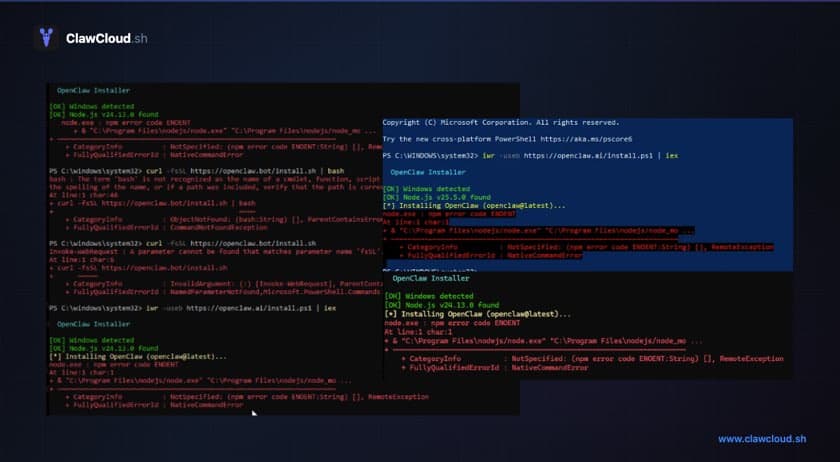
Running npm install openclaw@latest and getting nothing useful back is a common experience. The error messages aren't always obvious, and the gap between "installed" and "actually working" is wider than most tutorials let on.
If you're seeing npm install failed for openclaw@latest, openclaw npm install failed sharp libvips, openclaw install.sh npm install failed macos, or openclaw onboard command not found after install, you're in the right place.
A small handful of failure modes cover the vast majority of install problems. Here's what each one looks like and what to do about it.
Common error strings this page covers
npm install failed for openclaw@latestopenclaw npm install failed sharp libvipsopenclaw install.sh npm install failed macosopenclaw onboard command not found after install
If the underlying npm step is what failed, the fixes below are the right place to start whether you ran npm install -g openclaw directly or hit the error through install.sh.
npm version issues and old Node.js
OpenClaw requires Node.js 22 or later. If you're on an older version — which is common on Ubuntu and macOS systems that haven't been updated in a while — the install either fails outright or produces a seemingly successful install that silently breaks at runtime.
Check your versions first:
node --version
npm --version
If Node is below 22, update it. The official Node.js download page recommends nvm on Linux/Ubuntu:
# Install nvm
curl -o- https://raw.githubusercontent.com/nvm-sh/nvm/v0.40.4/install.sh | bash
# Reload shell, then install Node 22
nvm install 22
On macOS, use Homebrew: brew install node@22.
If you see warn npm install openclaw@latest fail in the output, check the Node version first before troubleshooting anything else.
If the log is full of deprecated warnings, don't stop there. Those warnings are often noise. Scroll until you find the first fatal line that mentions the real failure.
sharp and libvips errors during npm install
If your log mentions sharp, libvips, or sharp_ignore_global_libvips, start by treating it as an npm environment problem, not a unique OpenClaw-specific bug.
In practice, the first things to verify are the same ones that cause most other install failures: Node.js 22+, a clean global npm install path, and whether you've mixed sudo and non-sudo installs. Work through those before wiping everything.
Global install permission errors
OpenClaw installs as a global npm package. On Linux and macOS, that means npm tries to write to a system-owned directory — and fails with EACCES: permission denied unless you either sudo the install or configure npm to use a user-owned directory.
Using sudo npm install -g openclaw works but causes problems later (the binary runs as root, permissions on config files become a mess). The npm docs recommend configuring a user-owned prefix:
npm config set prefix '~/.local'
Then add ~/.local/bin to your PATH (add this to ~/.bashrc, ~/.zshrc, or ~/.profile):
export PATH="$HOME/.local/bin:$PATH"
Reload your shell, then install: npm install -g openclaw. No sudo required.
What openclaw onboard command not found or openclaw not found means
This one trips people up because the install appears to succeed. You run npm install -g openclaw, see no errors, and then try openclaw — nothing. The shell says command not found.
The installed but openclaw is not discoverable message (shown in verbose output with --loglevel verbose) means the binary installed but it's not in the PATH your shell is searching.
Run this to find where npm put the binary:
npm prefix -g
That prints the global prefix path. The openclaw binary lives in <prefix>/bin. If that directory isn't in your $PATH, the command won't be found. Add it to your shell config file and reload:
export PATH="$(npm prefix -g)/bin:$PATH"
source ~/.bashrc  # or ~/.zshrc
After this, openclaw --version should respond. The OpenClaw install docs also have a dedicated path troubleshooting section with additional platform-specific guidance.
The inappropriate ioctl for device error
This comes up on restricted environments, some CI systems, and occasionally Docker containers. It's a terminal TTY issue — OpenClaw's onboard wizard expects an interactive terminal and fails when it doesn't get one.
Running openclaw onboard --non-interactive --accept-risk bypasses the wizard and is the right approach for non-TTY environments.
Why the Telegram channel shows as not available
If Telegram was configured before the install issues were fixed, the channel state can get stuck. After fixing the install and running openclaw onboard again, the channel list may still show Telegram as unavailable.
Run openclaw doctor --repair to let OpenClaw diagnose and apply repairs automatically. If that doesn't resolve it, the config file at ~/.openclaw/openclaw.json may have an incomplete or malformed channel entry — deleting the channels section and re-running onboard clears it.
"Gateway connect pairing required" — a separate problem
If you see gateway connect pairing required after a successful install and onboard, that's not an install issue. That's the DM policy. By default, OpenClaw requires manual pairing before it responds to DMs. See the OpenClaw docs on pairing and DM policies for how to change the DM policy to open if you want it to respond to anyone immediately.
When to wipe and reinstall
Most install issues don't require a clean reinstall. Fix npm's permissions or PATH and the existing install usually works. The one case where wiping helps is if you've mixed sudo and non-sudo installs — the permission state of the config directory can get inconsistent. In that case:
sudo npm uninstall -g openclaw
rm -rf ~/.openclaw
npm install -g openclaw
Then re-run openclaw onboard.
If you'd rather skip the troubleshooting entirely, ClawCloud handles the install, config, and server management for you — see how fast the deploy actually takes. You can try the getting-started guide if you want to understand the manual setup first.