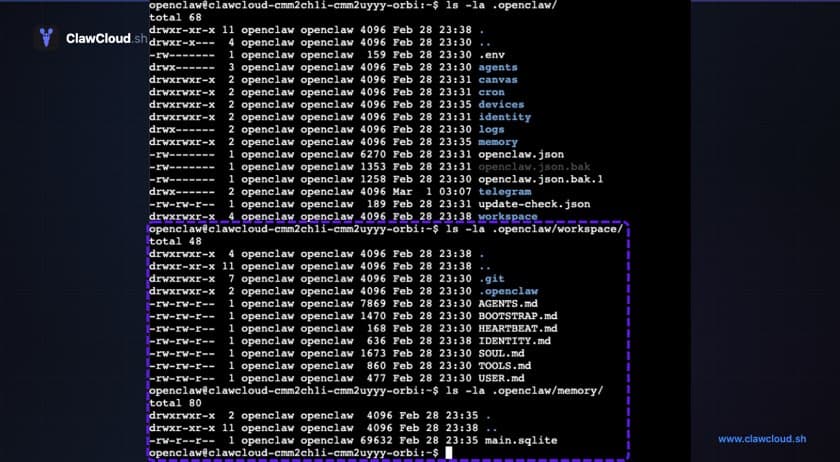
Memory is just Markdown files
OpenClaw memory is not a database. It is not a vector store. It is plain Markdown files sitting on disk in the agent workspace.
Two types of files get created:
MEMORY.md— long-term curated facts. The model writes here when it identifies something worth keeping permanently.memory/YYYY-MM-DD.md— daily logs. Timestamped notes from each day's conversations.
Both files live under ~/.openclaw/workspace/ by default. You can open them in any text editor, read them, edit them, or delete entries you don't want the bot referencing.
The model does not "learn" or change its weights. It writes text files that it can search later. That's the entire mechanism.
How the bot reads and writes memory
OpenClaw gives the model two memory tools:
memory_search— semantic search across all memory files. The bot uses this to find relevant notes even when the wording differs from the original.memory_get— reads a specific memory file by path.
The bot decides when to write new notes and when to search for existing ones. You can also tell it explicitly: "remember that I prefer responses in French" or "what do you remember about the project deadline?"
There's also an automatic flush. Before a conversation's context gets trimmed for length, OpenClaw prompts the model to save anything worth keeping to disk. This happens without you doing anything.
Vector search over Markdown
OpenClaw builds a small vector index over the memory files so memory_search can match by meaning, not just exact words. By default, this uses remote embeddings with automatic provider selection (OpenAI, Gemini, Voyage, or Mistral, based on which keys are available).
If you don't want remote embedding calls, local embeddings work too. Hybrid search (combining BM25 keyword matching with vector search) is available for queries where exact terms matter, like error codes or IDs. Both are off by default and configurable in openclaw.json under agents.defaults.memorySearch.
Why a dedicated server matters
On a ClawCloud server, the workspace at ~/.openclaw/workspace persists across process restarts and server reboots. Daily logs accumulate over weeks and months. The bot's memory actually builds up because the files stay on disk.
On shared hosting or ephemeral containers, these files can disappear when the process restarts. A bot that loses its memory files every deployment cycle is a bot that never retains context beyond a single session.
This is one of the practical advantages of having a dedicated VM for your OpenClaw instance. The memory files are yours, on your server, and they persist as long as the server exists.
What you don't need to configure
Memory works out of the box with default settings. The daily log, long-term file, automatic flush, and vector search are all enabled by default on a fresh OpenClaw install.
Advanced options exist if you want them: QMD (an experimental memory backend), temporal decay (older memories rank lower over time, 30-day half-life), and MMR re-ranking (reduces redundancy in search results). None of these are required. The defaults handle most use cases.
For a detailed reference, see the OpenClaw memory documentation. The OpenClaw docs cover the full configuration surface, including custom embedding providers and advanced memory backends. To extend what the bot can do beyond memory, check out the skills guide. And if you want to change which model powers the memory-writing process, the model switching guide covers that.