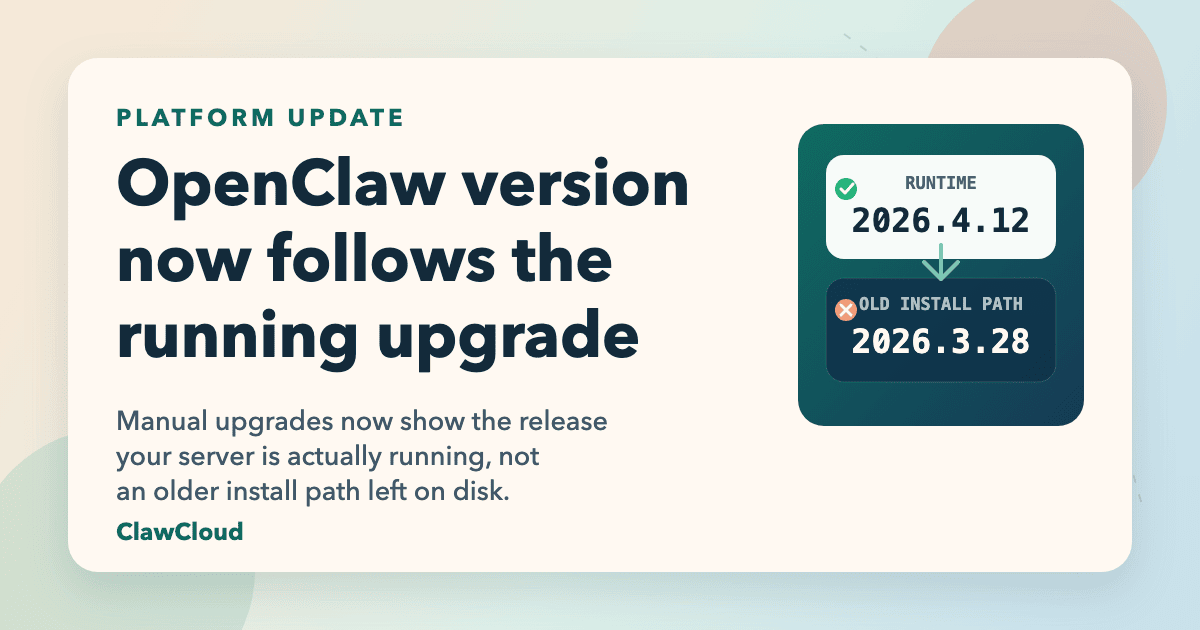
If you upgraded OpenClaw manually on an existing ClawCloud server and the dashboard still showed the previous release, the dashboard was not caching bad data. It was reading from the wrong source.
We traced a real mismatch where the running OpenClaw gateway had already moved to a newer release, while the dashboard still displayed the older one. The old detector looked at one package location on disk. That worked for snapshot-built installs, but it broke once a manual upgrade landed under a different npm prefix.
What was actually happening
On Linux, a manual OpenClaw upgrade can end up in a user-local global path such as .local or .npm-global, depending on how npm is configured. The new gateway process starts from that newer install, but the older package directory can still exist on disk.
That gave ClawCloud two valid-looking answers:
- the version the running process was actually serving
- the version stored in the older install path
Before this fix, the dashboard version badge, health checks, and support diagnostics could pick the second answer. For anyone doing a careful upgrade and then checking the dashboard to confirm it worked, that was a frustrating result.
What changed in ClawCloud
Starting with agent v1.8.10, ClawCloud now resolves the OpenClaw version in the same order a human operator would:
- Check the running OpenClaw gateway first.
- If that version is not available, fall back through the common package locations used by manual installs.
- Use the older snapshot path only as a last resort.
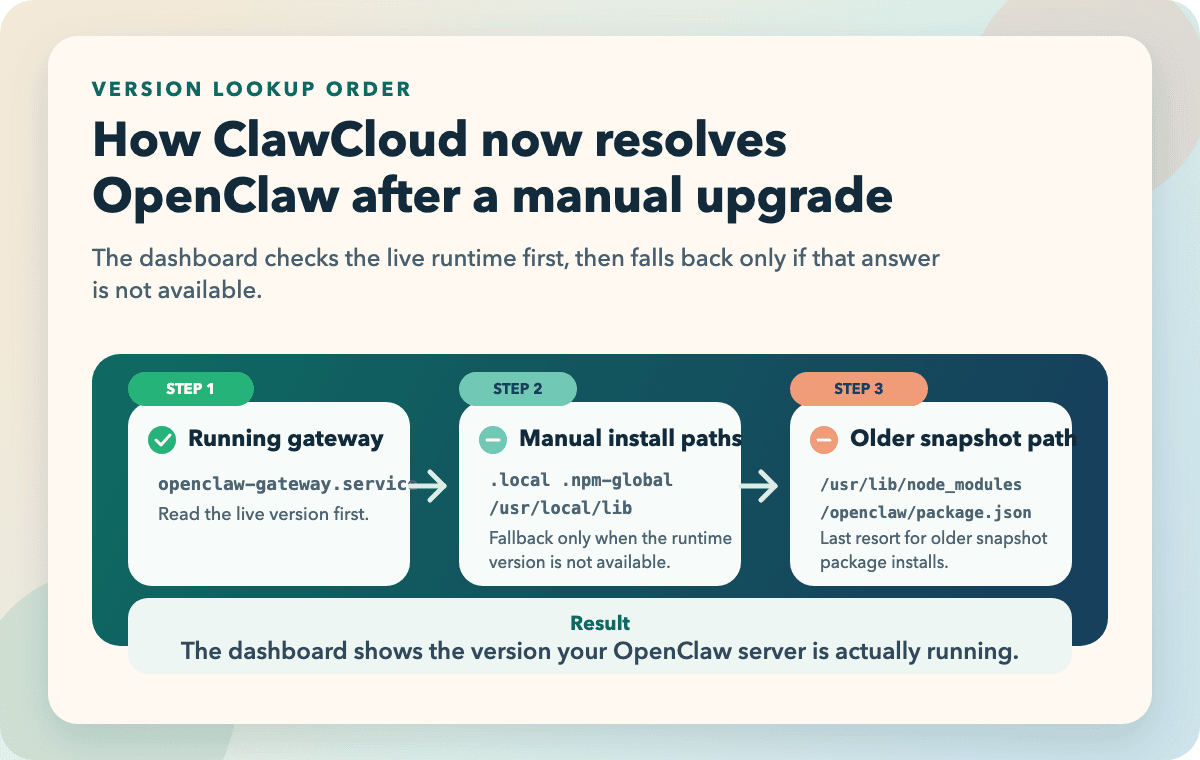
That matters because the running process is the thing that answers messages, loads skills, and serves requests. It should also be the thing that defines the version shown in the dashboard.
This follows the same pattern as the dashboard health notices and the browser-based OpenClaw console: prefer live runtime state over stale assumptions.
Why this matters if you self-manage upgrades
A lot of users never touch OpenClaw manually, and that is fine. But if you do any of the following, the version label needs to be trustworthy:
- test a newer OpenClaw release before a wider rollout
- install from a different npm prefix
- compare behavior between two releases
- verify whether a restart picked up the version you expected
Accurate version reporting saves time in a few concrete places. It tells you whether the upgrade you just ran actually took effect. It removes a class of false alarms during troubleshooting. It also makes support conversations shorter because both sides are looking at the same runtime version.
If you are planning a version test already, the OpenClaw v2026.3.28 upgrade guide is a good example of the kind of release-specific check you should pair with the dashboard view.
What you need to do
Nothing, if your instance is already on agent v1.8.10 or later.
If you upgraded OpenClaw manually and the dashboard used to lag behind, refresh the instance panel after the agent update reaches your server. The version badge should match the running release.
If you still see a mismatch after a manual upgrade, the next checks are simple:
- confirm the gateway restarted into the new release
- confirm the older package path is not the one still being executed
- compare the running version in your instance tools with the dashboard reading
The official OpenClaw documentation is still the best reference for core runtime behavior, and npm's global folders documentation explains why install paths can differ between environments.
The bigger pattern
This was a small fix, but it changes how the platform feels. When the dashboard says a server is running a given OpenClaw version, that number should reflect reality, not a leftover file path from the original install.
That is the standard behind ClawCloud platform updates: less guesswork, better diagnostics, and fewer moments where users have to wonder whether the UI is telling the truth.