Setting up OpenClaw typically involves provisioning a server, installing Node.js, running the onboard command, configuring API keys and channel tokens, setting up a process manager, and hoping nothing breaks. If you've tried it, you know: it's harder than it looks.
With ClawCloud, you skip all of that. Here's the actual process.
Before you start
You'll need two things:
- A bot token for your messaging channel (Telegram guide · Discord guide).
- Optionally, an API key from OpenAI, Anthropic, or Google AI Studio if you want to bring your own key (BYOK). Otherwise, add the managed AI credits addon during checkout.
If you don't have a bot token yet, getting one takes about 5 minutes.
The deploy process
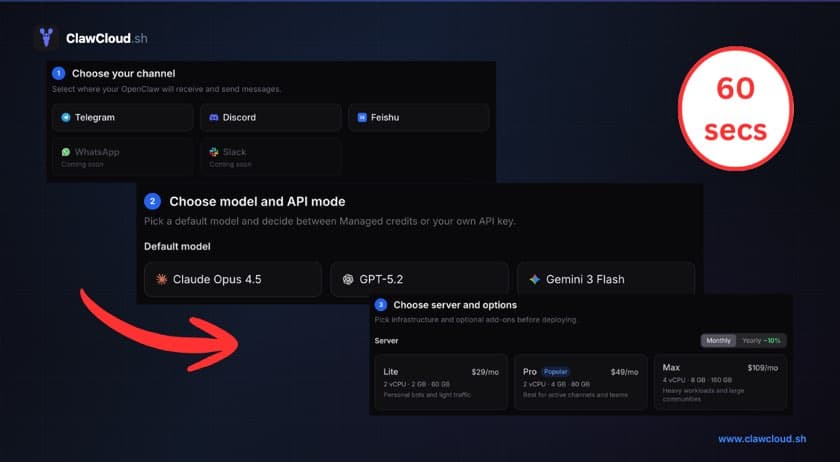
Step 1: Choose a plan
Go to clawcloud.sh/deploy. Pick a plan:
- Lite ($29/month) — 1 instance, Telegram, Discord, and Feishu
- Pro ($49/month) — All channels, daily backups, SSH access
- Max ($109/month) — 1 instance, daily backups, SSH access (hourly backups available as addon)
Step 2: Connect a channel
Select Telegram, Discord, or WhatsApp. Paste your bot token. Optionally name your bot.
Step 3: Pick a model and deploy
Select Claude, GPT, or Gemini. Bring your own API key (BYOK) or add the managed AI credits addon for hands-off AI billing. Review the summary and click Pay & Deploy.
Stripe checkout processes your payment. After that, your dedicated server starts provisioning. The whole thing — from opening the wizard to having a live bot — takes under a minute.
What happens behind the scenes
When you click deploy, ClawCloud:
- Provisions a dedicated server
- Installs and configures OpenClaw with your model and channel settings
- Starts the OpenClaw gateway service
- Connects your bot to the messaging channel
You don't see any of this. You see a success page, then your dashboard, then your bot responding to messages.
For a deeper look at the server setup — Node.js, systemd, firewall, bundled tools — see what OpenClaw hosting requires.
After deployment
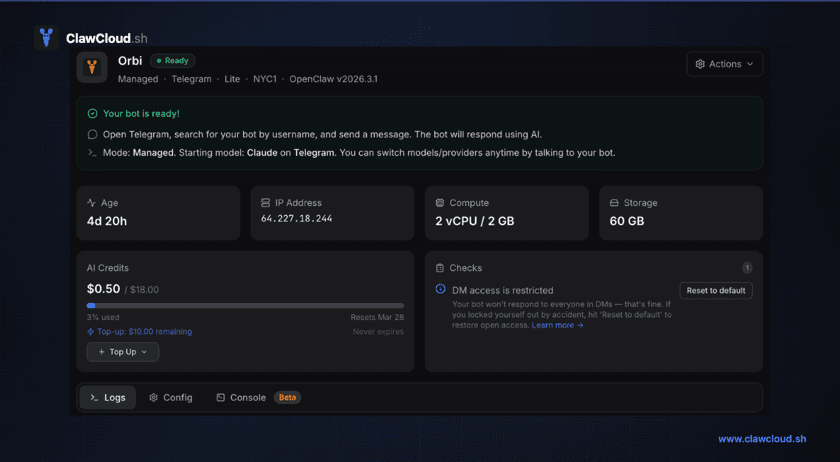
Your dashboard shows your instance status, recent logs, and configuration. From there you can:
- Change the AI model or system prompt
- View activity logs
- Reboot the instance
- Add SSH access (Pro and Max)
That's it
No servers, no SSH, no Docker, no config files. If you've been struggling with self-hosting, this is the shortcut.