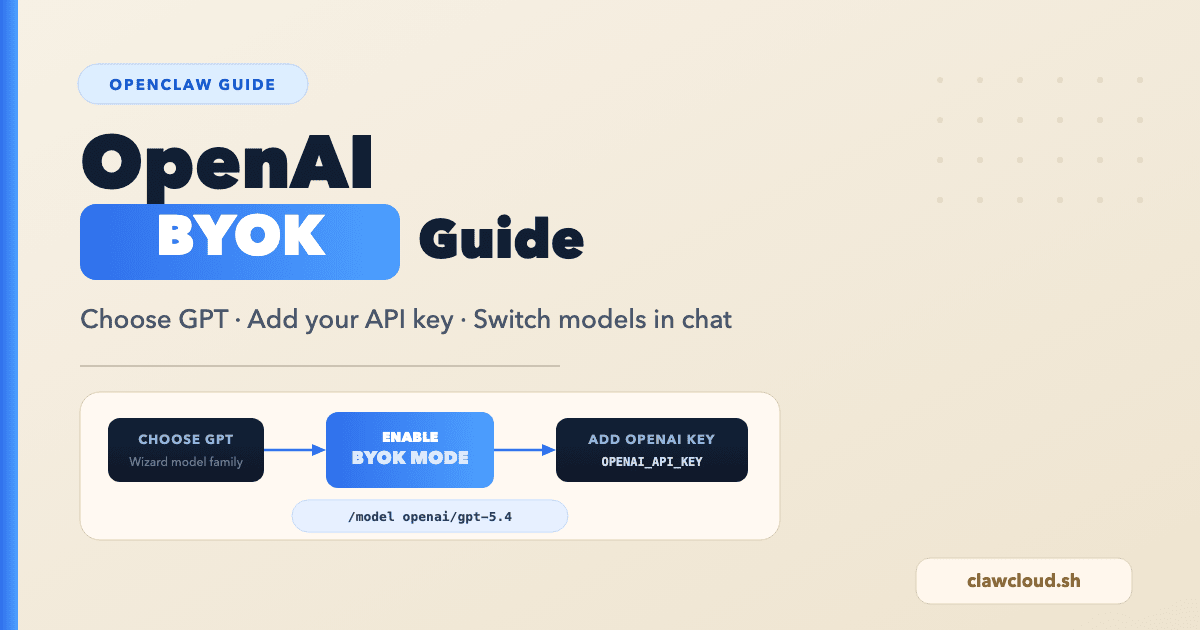
If you want to use your own OpenAI key on ClawCloud, use BYOK mode in the deploy wizard. OpenAI's developer quickstart says to create the key in the dashboard and store it securely, and OpenClaw's OpenAI provider docs document the direct API-key route as openai/* with OPENAI_API_KEY.
What you need before starting
- An OpenAI API key created in the OpenAI dashboard and referenced by OpenAI's quickstart
- A ClawCloud deployment where you can choose GPT plus BYOK in the deploy wizard
- A channel where you can test the bot after deploy. OpenClaw documents both Telegram and Discord as supported chat surfaces
This guide sticks to claims that are documented in OpenAI's developer docs or OpenClaw's docs. Where OpenAI behavior changes quickly, the linked model pages are the source of truth.
Step 1: Choose GPT and BYOK during setup
In ClawCloud's deploy wizard, Step 2 is "Choose model and API mode." For OpenAI, choose the GPT option, switch API mode to BYOK, and paste your API key into the provider key field. OpenClaw's OpenAI provider docs treat this as the direct openai/* route backed by OPENAI_API_KEY.
If you want direct OpenAI Platform billing, stay on the openai/* path. OpenClaw documents ChatGPT/Codex sign-in as a separate openai-codex/* route, not the same thing as an API key. See the OpenAI provider docs.
Step 2: Pick the exact OpenAI model after deployment
ClawCloud's GPT choice gets you onto the OpenAI provider path. Once the bot is live, OpenClaw's model docs and slash command docs say you can inspect and switch the exact model with /model list, /model status, and /model <provider/model>.
/model list
/model status
/model openai/gpt-4o
/model openai/gpt-5.4
/model openai/o4-mini
OpenAI's current model pages describe the common choices like this:
| Model | Official positioning | Source |
|---|---|---|
gpt-4.1-mini | "Smaller, faster version of GPT-4.1" that "excels at instruction following and tool calling" | OpenAI GPT-4.1 mini |
gpt-4o | "Fast, intelligent, flexible GPT model" and "the best model for most tasks" outside the o-series | OpenAI GPT-4o |
gpt-5 | "Previous intelligent reasoning model for coding and agentic tasks" | OpenAI GPT-5 |
gpt-5.4 | "Best intelligence at scale for agentic, coding, and professional workflows" | OpenAI GPT-5.4 |
o4-mini | "Fast, cost-efficient reasoning model" | OpenAI o4-mini |
o3 | "Reasoning model for complex tasks" | OpenAI o3 |
The exact catalog on your instance can change over time, so treat /model list as the runtime source of truth and use the OpenAI pages above to understand what each model is for.
Step 3: Test the connection
After the instance is ready, run /model status and then send a normal message from your supported chat surface. OpenClaw documents Telegram as production-ready for bot DMs and groups, and Discord as ready for DMs and guild channels. /model status is the fastest way to confirm the active model and auth view because it is documented in OpenClaw's model selection docs and slash commands reference.
If the first reply fails with an auth error, check the OpenAI key in the OpenAI dashboard. If you intended to use a direct API key, keep the model on the openai/* route described in OpenClaw's OpenAI provider docs, not the separate openai-codex/* OAuth route.
Step 4: Check rate limits and spend the right way
OpenAI's rate limits guide says rate limits are measured as RPM, RPD, TPM, TPD, and IPM, and that limits are defined at the organization and project level, not the user level. The same guide says you can view your rate and usage limits in the limits page, and that OpenAI automatically graduates accounts to higher usage tiers as API spend increases.
If you plan to use reasoning models, OpenAI's reasoning guide says reasoning tokens still count against the context window and are billed as output tokens. That matters for bots with long chats or frequent multi-step tasks.
For shared bots, OpenAI's rate limits guide also recommends setting your own daily, weekly, or monthly limits for individual users if you expose programmatic or high-volume access. That advice is more accurate than assuming there is a per-key monthly cap.
No OpenAI key? Use managed mode
If you do not want to manage your own OpenAI key, ClawCloud also offers managed mode. See the managed OpenClaw AI guide for the product-side flow.
Official references
- OpenAI developer quickstart
- OpenAI models overview
- OpenAI rate limits guide
- OpenAI reasoning guide
- OpenClaw OpenAI provider docs
- OpenClaw model selection docs
- OpenClaw slash commands reference
Related guides
- Switch OpenClaw AI models — change models after deployment
- Choose a model without overpaying — cost breakdown across providers
- OpenClaw configuration — full config reference