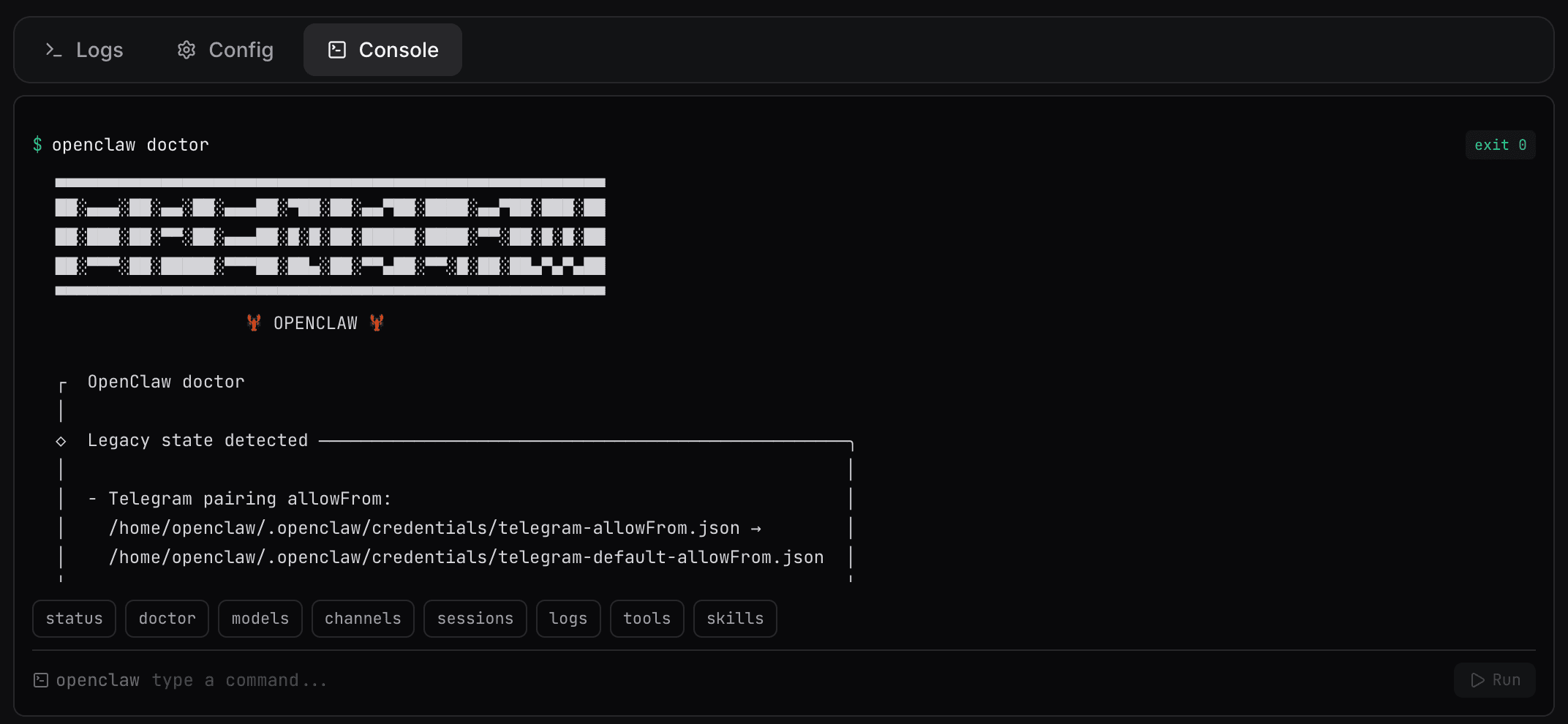
The ClawCloud dashboard now has a Console tab. Type an OpenClaw command, hit Run, and see the output — no SSH, no terminal app, no VPN.
What the Console does
Every ClawCloud instance runs an OpenClaw bot on a dedicated virtual machine. Until now, if you wanted to do anything beyond what the dashboard exposed — check a pairing request, run openclaw doctor, see which models are available, inspect channel status — you needed SSH access. That's fine on Pro and Max plans, but it's friction either way.
The Console tab removes that friction. It's a command runner built into the dashboard that connects to the agent running on your server instance.
What you can run
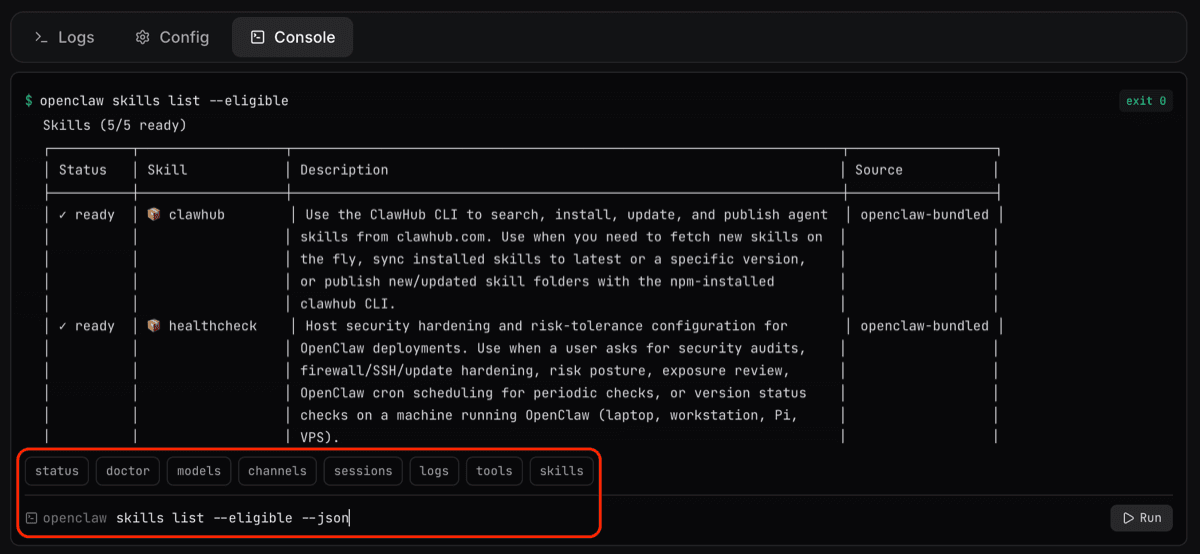
Not every OpenClaw command is available — the console only allows a specific list of safe subcommands. Here's what's included:
Health and status:
openclaw doctor, openclaw status, openclaw sessions
Logs and config:
openclaw logs, openclaw config get, openclaw config set
Channels and access:
openclaw channels list, openclaw channels status, openclaw pairing list <channel>, openclaw pairing approve <channel> <code>
Models and agents:
openclaw models list --all --plain, openclaw models set <model>, openclaw agents list
Tools, skills, cron:
openclaw tools list, openclaw tools install <name>, openclaw skills list, openclaw cron list
Gateway:
openclaw gateway restart
Destructive or setup-only commands (onboard, reset, setup, configure) are blocked — they're handled by the provisioning flow and shouldn't be run on a live instance.
How it works
Click the Console tab in your instance panel. You'll see a row of quick-command buttons for the most common checks, plus an input field. Commands run as the openclaw user on your server instance, with a 30-second timeout per command. Output shows inline with color-coded exit codes — green for success, red for errors.
Command history works with up/down arrow keys. The console stays disabled if your instance isn't ready.
Why it's built this way
Running arbitrary shell commands from a web dashboard would be a security nightmare. Instead, the agent validates every input against an allowlist before executing anything. Commands are passed as argument arrays to the process, not through a shell — so status && rm -rf / doesn't do what the attacker hopes. The && becomes a literal argument to openclaw, which rejects it.
The command runner is also bounded by the openclaw user. It can't touch root-owned files, can't modify system services directly, and can't reach the agent token file.
Useful things to do with it now
Quick health check without SSHing in:
doctor
Check if someone's trying to pair with your Telegram bot:
pairing list telegram
Swap the active model (try a different one without touching the dashboard model picker):
models set anthropic/claude-sonnet-4
Check current channel connection state:
channels status
Apply config changes and restart the gateway:
config set channels.telegram.dmPolicy pairing
Then:
gateway restart
For the full list of available commands and what each one does, see the OpenClaw CLI Commands guide.